
Templates
This section provides an overview of Templates within the Shipment Tracking solution, which enable organizations to standardize shipment configuration, streamline multi-level shipment structure creation, and enforce consistent tracking and operational workflows. Using templates ensures efficient, repeatable shipment setup and supports structured tracking from simple single-level shipments to complex multi-tier logistics.
Templates are a core feature of the platform that brings efficiency, standardization, and configuration into the shipment creation workflow.
By defining templates, organizations can ensure that best practices and consistent configurations are followed.

Templates
Templates can be used during the shipment creation process to:
- Standardize shipping configurations.
- Streamline repetitive shipment setups.
- Define tracking options and hierarchies effectively.
- Ensure compliance with operational protocols.
Accessing Templates
- Navigate to the top menu bar.
- Click on Templates to open the menu.
Template Levels and Hierarchy
In logistics or supply chain systems, template levels refer to the structural depth or complexity of templates used to standardize and manage operations such as shipments, assets, inventory, or workflow processes.
1-Level Template
This is a basic, flat template structure with no dependencies or hierarchies. Ideal for straightforward processes like a single shipment form, asset check-in, or basic delivery task.
Example: A shipment template that includes origin, destination, and carrier info without sub-processes.
2-Level Template
This is a hierarchical template with a main (parent) template and one level of associated sub-processes. Suitable for workflows that require a breakdown of tasks or dependencies between components.
Examples:
- Parent Template: Master Shipment Order.
- Child Template: Individual delivery or container details under the master order.
3-Level Template
Nested templates with more than two layers, enabling complex workflows with detailed tracking. Used in advanced logistics or supply chain operations, such as multi-leg shipments.
Examples:
- Level 1: BOL Level
- Level 2: Container Level
- Level 3: Pallet or Box Level
Best Practices
- Use 1-level templates for speed and simplicity in repetitive tasks.
- Use 2-level templates when tasks are interdependent (example: a container within a shipment).
- Use 3-level templates for comprehensive tracking and reporting in complex workflows.
Add New Template
The Add New Template feature enables the users to create various levels of templates and modify them in the later stages. This topic describes the options in this feature.
Click + Add New Template to begin the process. Clicking on this opens a drawer window where you must input and choose options of your choice by using the checkboxes.
This drawer window contains the following fields:
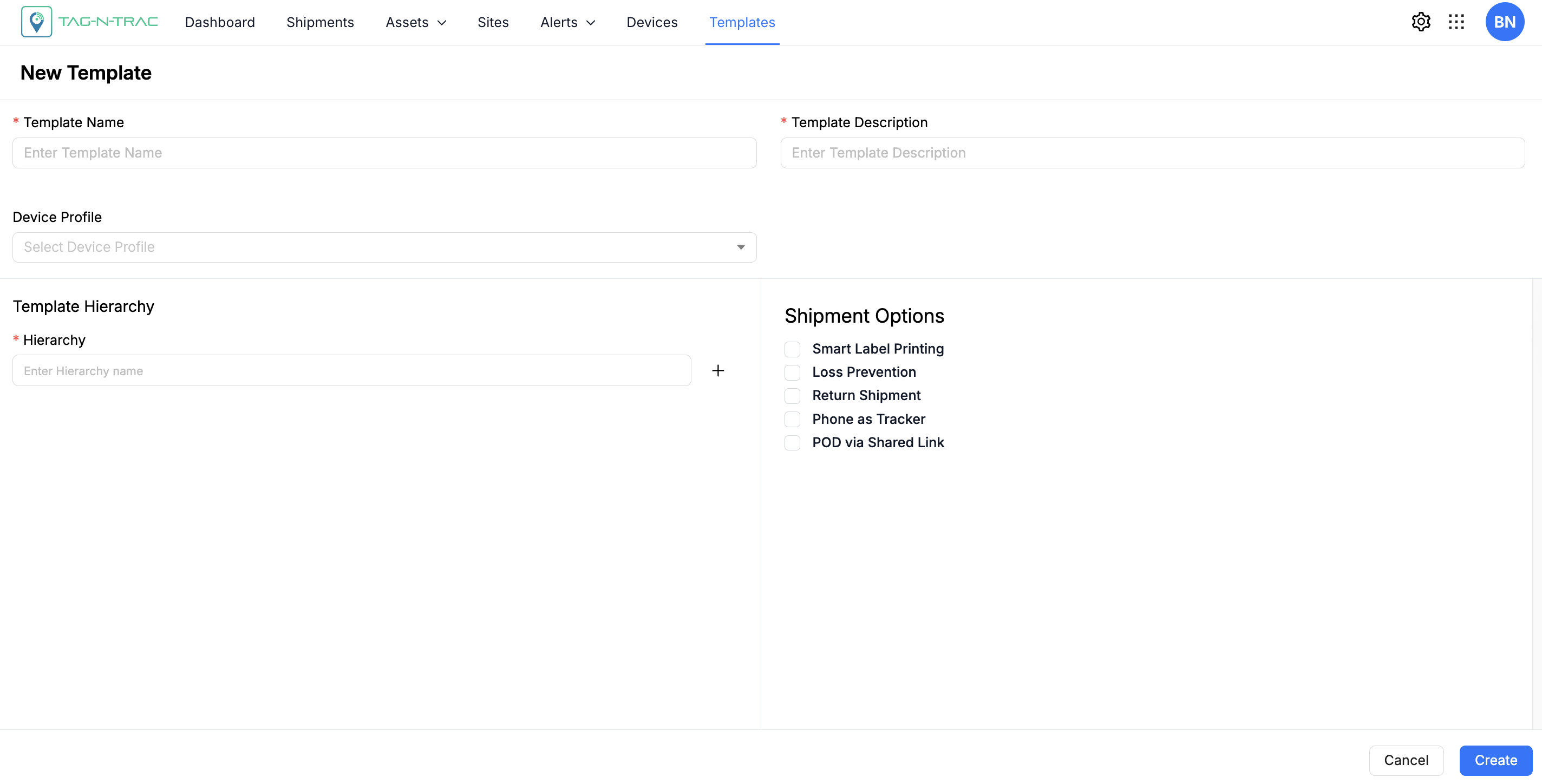
Add New Template
Template Fields Explanation
The following sections describe each field available in the Add New Template interface. Use this guide to understand the purpose, usage, and validation requirements for each field.
Note: Make sure to save your template once all fields are filled. Templates can be edited later if adjustments are needed.
| Field | Description | Example | Validation Rules |
|---|---|---|---|
| Template Name | A unique name assigned to the template for identification and reference within the platform. | Simple Delivery — used for similar shipment operations. |
|
| Template Description | A brief summary describing the purpose and scope of the template. Stored in the platform for clarity. | Used to track electronics deliveries to retail partners. Includes proof of delivery and return tracking. |
|
| Device Profile | Defines the device configuration associated with the template, including hardware type, sensors, and capabilities used during operations. Determines how data is captured and reported. | Specifies how often the device collects sensor data (location, temperature, battery, and so on) and uploads it to the platform. |
|
| Template Hierarchy | Defines the parent-child structure between assets (e.g., shipments, containers, pallets). | A single shipment is the parent; individual boxes or pallets are children associated with the shipment. |
|
| Proof of Delivery (POD) | Activates the collection of delivery confirmation through signature. | Recipient signs at the point of delivery. |
|
| POD via Shared Link | Sends a secure, shareable link allowing recipients to confirm delivery remotely. | Recipients can confirm receipt through a link when not physically present. |
|
| Return Tracker | Ensures the tracking devices are returned post-shipment for reuse or disposal. | Platform tracks return status of hardware/tracker used in a completed delivery. |
|
| Return Shipment | Defines the process for managing return shipments alongside original deliveries. | Used when goods are returned to the supplier or distribution center for restocking or replacement. |
|
| Loss Prevention | Enables geofencing, route monitoring, and risk mitigation in case of shipment loss. | Alerts triggered if a vehicle deviates from planned route or makes unscheduled stops. |
|
| Cancel | Cancels template creation and exits setup without saving. | Use when you choose not to proceed with template creation. | NA |
| Create | Saves the configured template to the system for future reuse. | Use to finalize a shipment template that can be reused for electronics deliveries. | NA |
Templates Example
This topic describes the topic types and the examples that you can refer when creating templates.
1-Level Template: Standard
Template Name
Electronics Delivery – Standard
Template Description
A simple shipment template for transporting shipments from a warehouse or source address without using a sub-hierarchy.
Template Hierarchy
Single level — all assets are tracked under one shipment.
Configuration
- Phone as Tracker: Enabled
- POD via Shared Link: Enabled
- Proof of Delivery: Disabled
- Return Tracker: Disabled
- Track by Cellular Asset: Disabled
- Loss Prevention: Disabled
2-Level Template: Container Level
Template Name
Retail Distribution – Container Level
Template Description
A container-based delivery structure for tracking asset flow from warehouse to multiple outlets.
Template Hierarchy
Two levels — Master shipment (parent) > Containers (children)
Configuration
- Phone as Tracker: Disabled
- Proof of Delivery: Enabled
- POD via Shared Link: Enabled
- Return Tracker: Enabled
- Track by Cellular Asset: Enabled
- Loss Prevention: Enabled
3-Level Template: Multi-Tier
Template Name
Global Shipment – Multi-Tier
Template Description
A multi-leg shipment setup for goods requiring granular tracking from BOL to container to box or unit levels.
Template Hierarchy
Three levels:
- Level 1: BOL
- Level 2: Containers
- Level 3: Pallets or Boxes
Configuration
- Phone as Tracker: Disabled
- Proof of Delivery: Enabled
- POD via Shared Link: Enabled
- Return Tracker: Enabled
- Track by Cellular Asset: Enabled
- Loss Prevention: Enabled
Best Practices
- Consistent Naming Conventions: Use clear and consistent names for templates to avoid confusion.
- Detailed Descriptions: Provide comprehensive descriptions to ensure users understand the purpose and configuration of each template.
- Regular Updates: Periodically review and update templates to reflect any changes in operational procedures or compliance requirements.
- Testing: Test templates in a controlled environment before deploying them across the organization.
Updated 9 months ago