
Getting Started
This section helps you configure and set up the platform.
To set up the platform, refer to the following topics.
Onboarding Process
To access the platform for the first time:
-
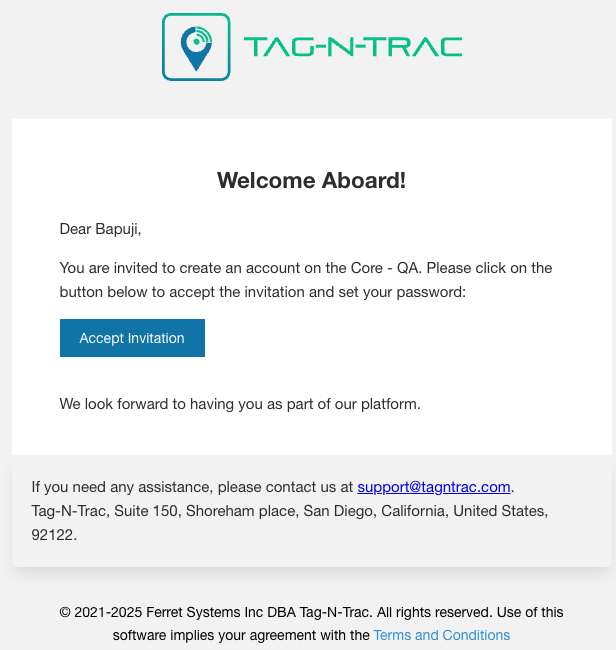
Check Your Onboarding Email: Refer to the email for detailed login instructions and additional setup information.
-
Accept Invitation: Click the Accept Invitation link provided in your onboarding email to accept and create an account.
-
Create Password: Follow these simple steps to set your password for the first time:
Note: There are no restrictions on password type. You may set any combination of alphanumeric characters, special characters, or a mix of both. There are no limitations on word count or length. Choose a strong password to enhance security.
- Enter your new password in the Password field.
- Re-enter the same password in the Password confirmation field.
- Click on the eye icon next to the password fields to view the entered password and ensure accuracy.
- Once both fields match, click the Submit button to complete the process.
Launching the Platform
Once you successfully create your password, you will be redirected to the platform login page.
Alternatively, you can access the platform directly using the unique tenant URL provided to you by Tag-N-Trac in your onboarding email.
Login Process
The Relativity Platform offers real-time visibility and traceability for your operations. This topic provides step-by-step instructions for securely logging into the system using either traditional login credentials or using the Single Sign-On (SSO) method.
Accessing the Login Page
Navigate to the official Relativity Platform login URL provided to you by TagNTrac in the invitation email.
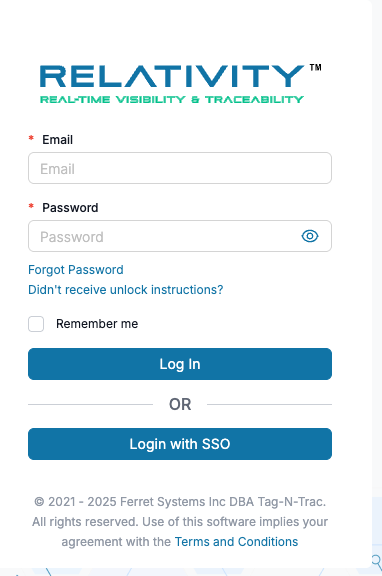
You will see the following options on the login screen:
- Email and Password login
- Log In button
- Login with SSO button
- Forgot Password and Didn’t receive unlock instructions? links
Logging in with Email and Password
Enter Your Credentials
- In the Email field, enter your company-registered email address.
- In the Password field, enter your current password.
- Select Remember me to stay logged in on this browser (optional step).
- Click Log In.
If your credentials are correct, you’ll be redirected to your dashboard.
Forgot Password
If you forgot your password:
- Click Forgot Password.
- Follow the on-screen instructions to reset your password through email.
Logging in with SSO
The Microsoft Single Sign-On (SSO) feature allows users to securely log in using their microsoft credentials, without the need to remember the username or password each time they access the Relativity Platform. This simplifies access, enhances security, and improves the user experience by reducing login fatigue and leveraging your organization’s centralized authentication system.
To use the SSO feature for logging in:
Start the SSO Login
- Click the Login with SSO button on the Relativity login screen.
Enter Your Microsoft Credentials
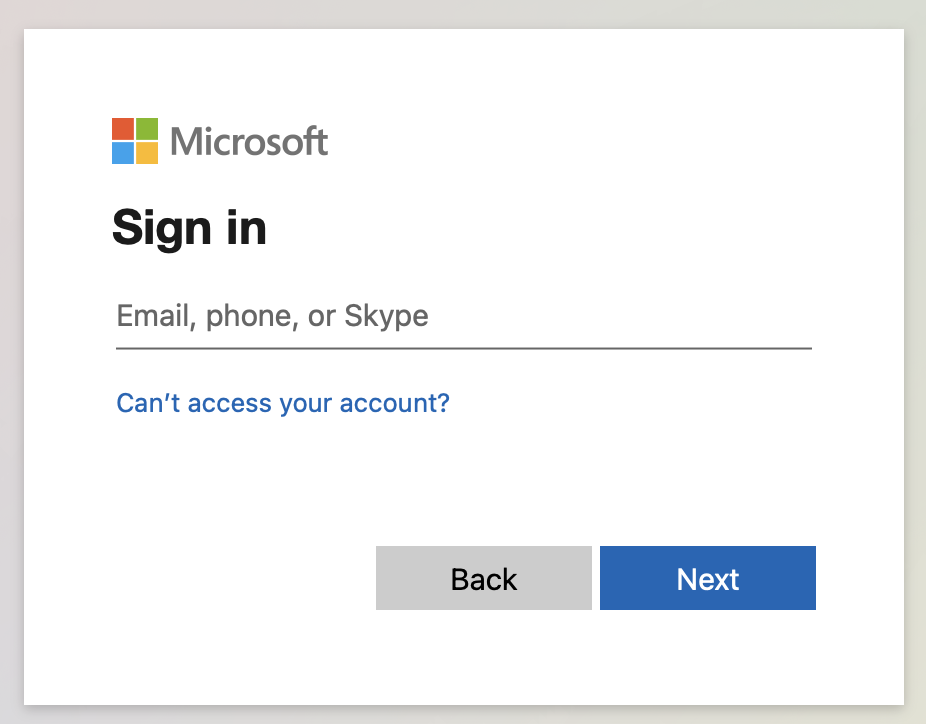
You will be redirected to the Microsoft SSO login screen:
-
Enter your Microsoft Email Address (e.g.,
[email protected]), and click Next.
-
Enter your Microsoft Password then click Sign in.
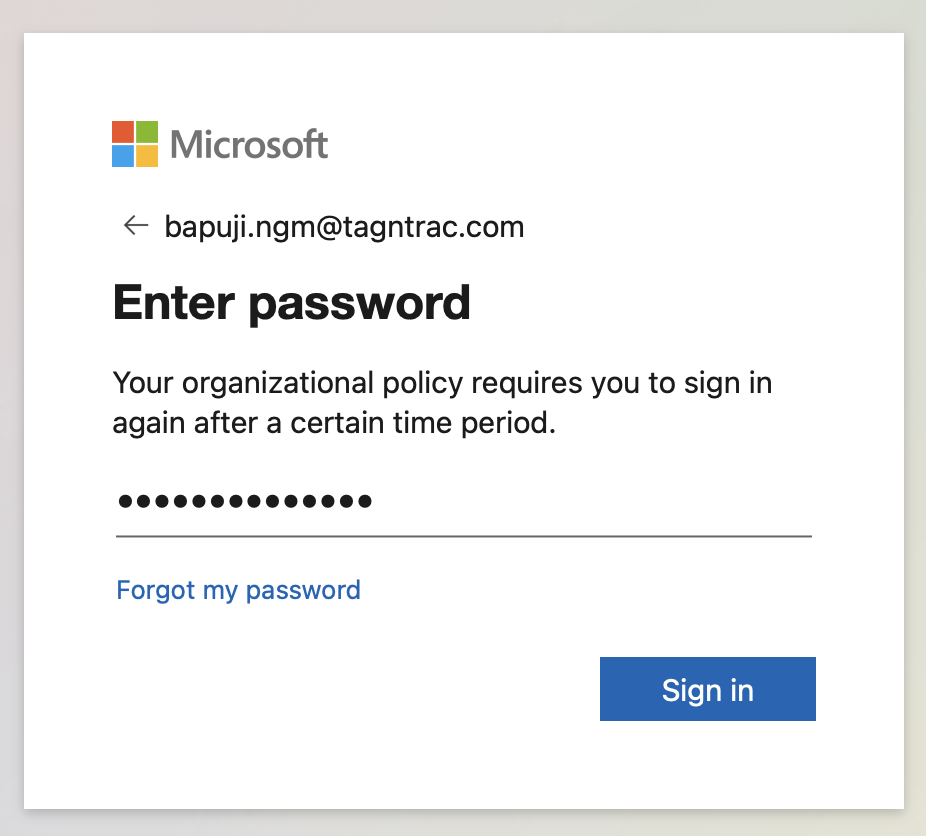
Note: If your organization enforces periodic logins, you may see a message stating the following requirement.
Grant Permissions
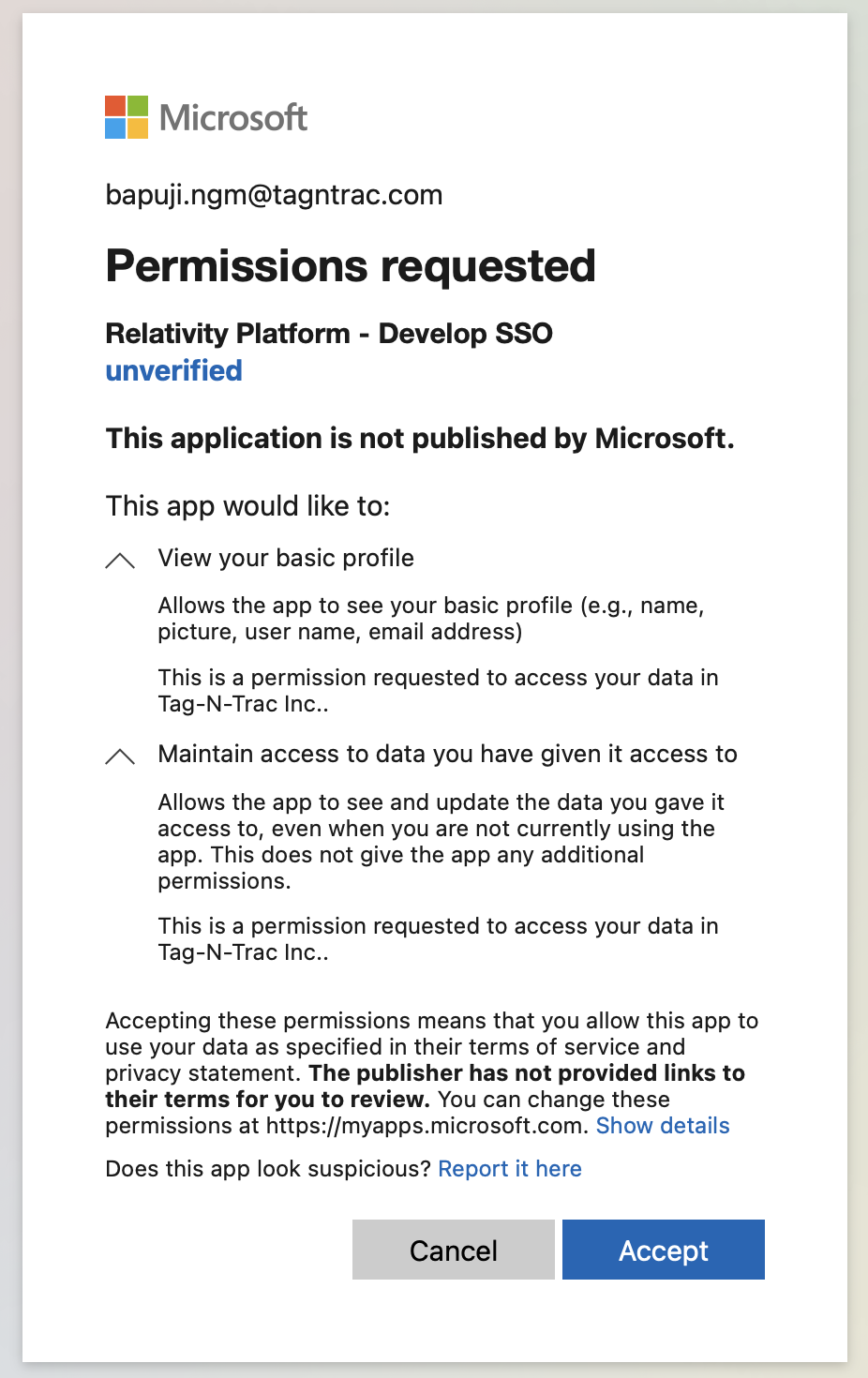
If logging in for the first time:
- A permissions request will appear titled:
- Relativity Platform - Develop SSO
- Review the permissions requested:
- View basic profile (name, email)
- Maintain access to shared data
- Click Accept to continue.
Note: You may see a caution message stating:
This application is not published by Microsoft. Only proceed if you trust the Relativity Platform and recognize the email domain.Disregard this message and continue to login.
Account Lockout and Unlock Instructions
When Your Account Gets Locked
To protect your account and data, the Relativity Platform enforces a security policy that locks your account after five (5) consecutive failed login attempts. If this happens, you will no longer be able to sign in until your account is unlocked.
You will see an on-screen message indicating that your account is locked.
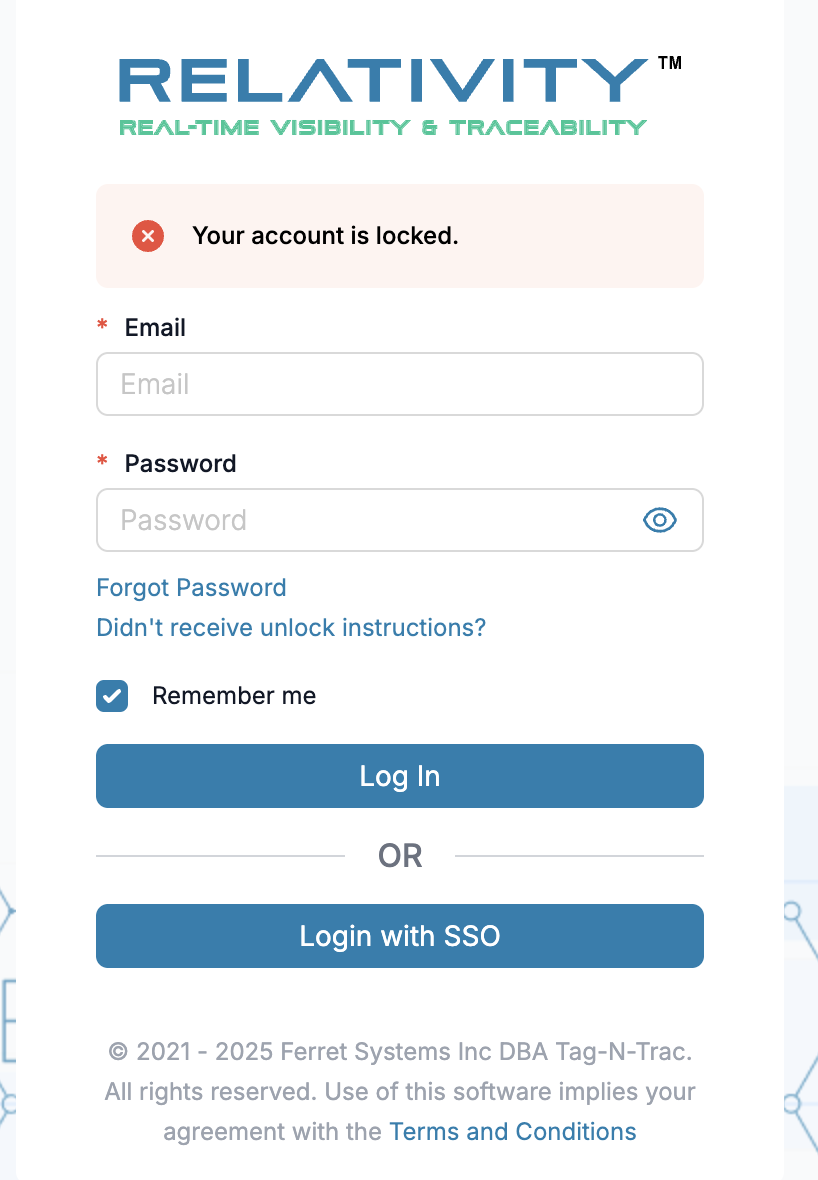
Unlocking Your Account
To regain access, follow these steps:
-
On the login page, click the link “Didn’t receive unlock instructions?” located below the password field.
-
You will be prompted to enter your registered email address associated with your account.
-
Click Submit or Send Instructions (based on system configuration).

-
Check your email inbox (and spam/junk folder, if necessary) for an email containing unlock instructions.

-
Click Unlock My Account link and follow the steps provided to unlock your account.
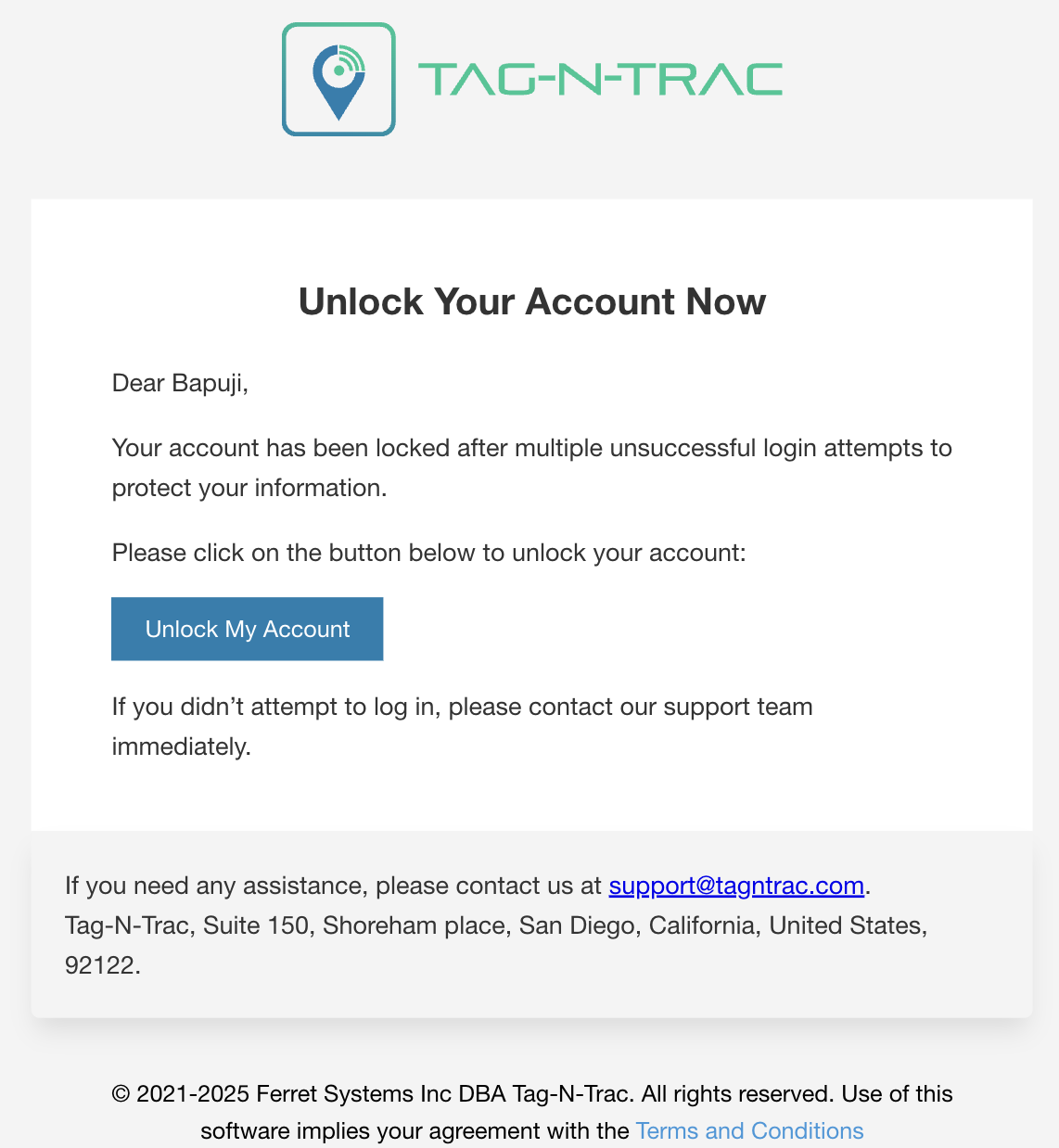
Once your account is successfully unlocked, return to the Relativity login page and log in with your correct credentials.
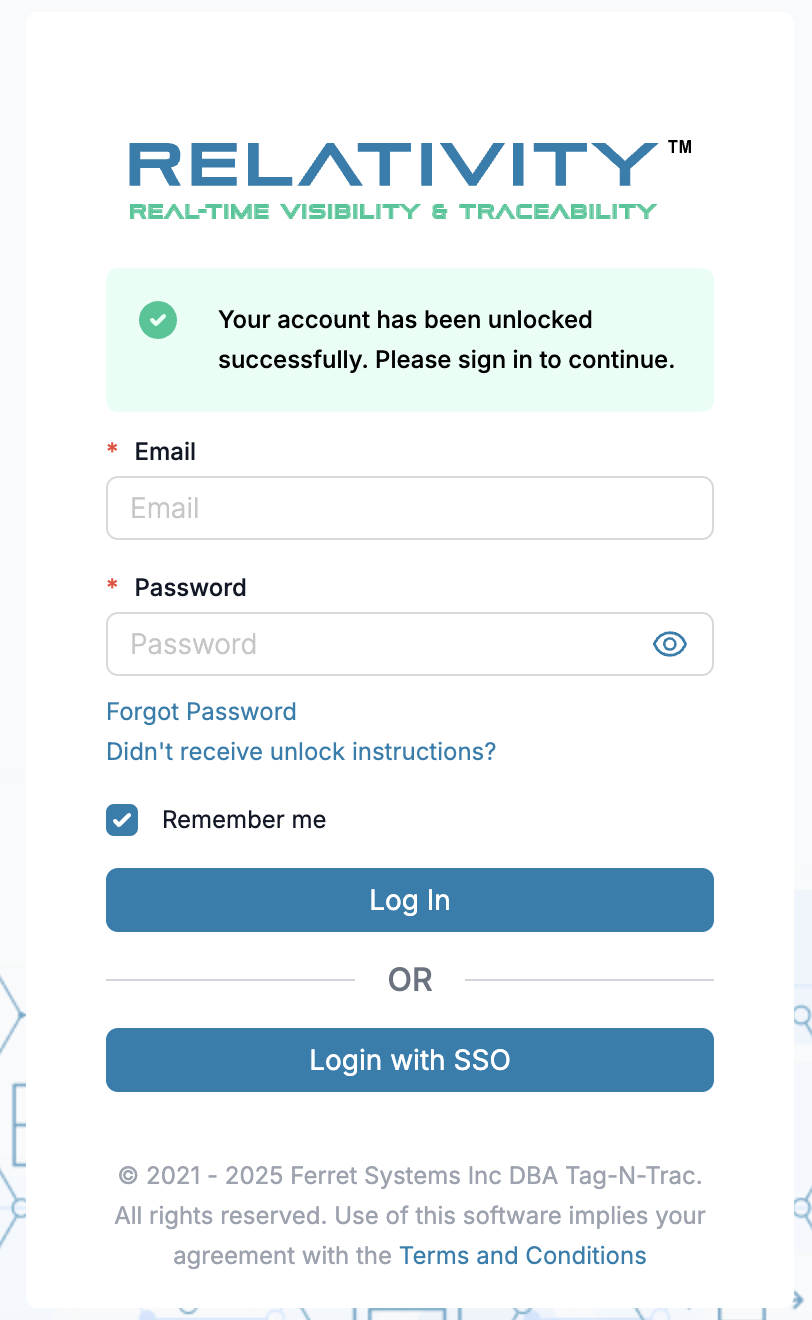
Note: If you do not receive the unlock email within a few minutes, ensure your email address was entered correctly. If the issue persists, contact your system administrator or IT support.
Security Notes
- Always log out after accessing your account on shared or public devices.
- Never share your credentials with others.
- If prompted for permissions, review them carefully before accepting.
- Do not click Accept on unfamiliar or suspicious applications.
Troubleshooting
| Issue | Resolution |
|---|---|
| Login credentials not accepted | Double-check spelling, check Caps Lock, and retry. |
| Forgot your password | Use the Forgot Password link to reset. |
| Cannot access Microsoft login | Verify your internet connection or try a different browser. |
| SSO permissions screen does not load | Ensure pop-ups are enabled or retry in incognito mode. |
Unverified app warning during SSO login | Verify with your IT department before proceeding. |
Updated 11 months ago