Alerts
The Alerts menu provides a centralized location to view, create, and manage alerts across your devices, shipments, assets, and asset groups. Users can preconfigure the alerts to monitor specific conditions and automatically notify you when defined thresholds are exceeded.

Alerts Menu
The Alerts menu includes two key components:
- Alerts List – Displays all triggered alerts.
- Rules – Allows you to define and manage alert configurations.
These components are explained in detail in the subsequent sections.
Using Alerts effectively helps you respond quickly and maintain operational control over your assets, devices, and shipments.
Note: To create or modify an alert, refer to Rules section for instructions.
Alerts List
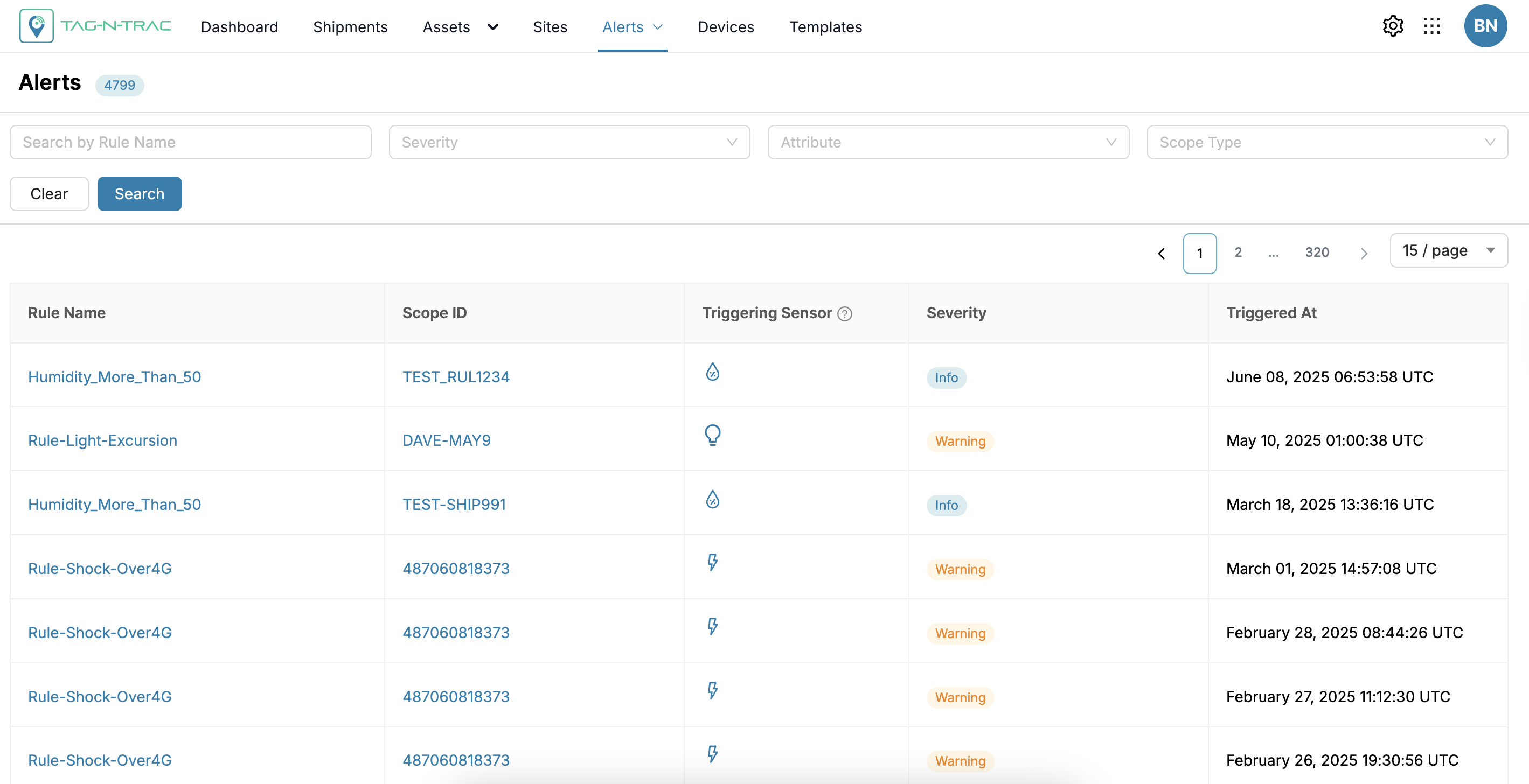
The Alerts List offers a detailed overview of all triggered alerts, enabling users to monitor and respond to critical events in real-time. Each alert entry includes essential information such as the triggered rule, the affected asset or device, the monitored condition, and the recorded value that caused the alert.
Alerts are also categorized by severity, allowing users to quickly identify and prioritize high-impact issues. This structured presentation enhances situational awareness and supports timely, informed decision-making.
Alerts List
The Alerts List displays all triggered alerts along with detailed information, including:
| Field | Description |
|---|---|
| Rule Name | The name assigned to the predefined alert rule. |
| Scope ID | A unique identifier for the specific asset, or shipment associated with the alert. |
| Triggering Sensor | Indicates the sensor type that triggered the alert, represented by its icon. |
| Severity | Defines the alert level (e.g., Info, Warning, Critical, Alarm). |
| Triggered At | Displays the most recent date and time the alert was triggered. |
Clicking the Rule Name or Scope ID opens the Detailed Page for the selected attribute.
For more information about detailed pages, refer to the::
- Rules Details Page
- Shipment Details Page
- Asset Details Page
Alerts Search and Filter
The search and filtering options allow users to narrow down alert data using the following parameters.
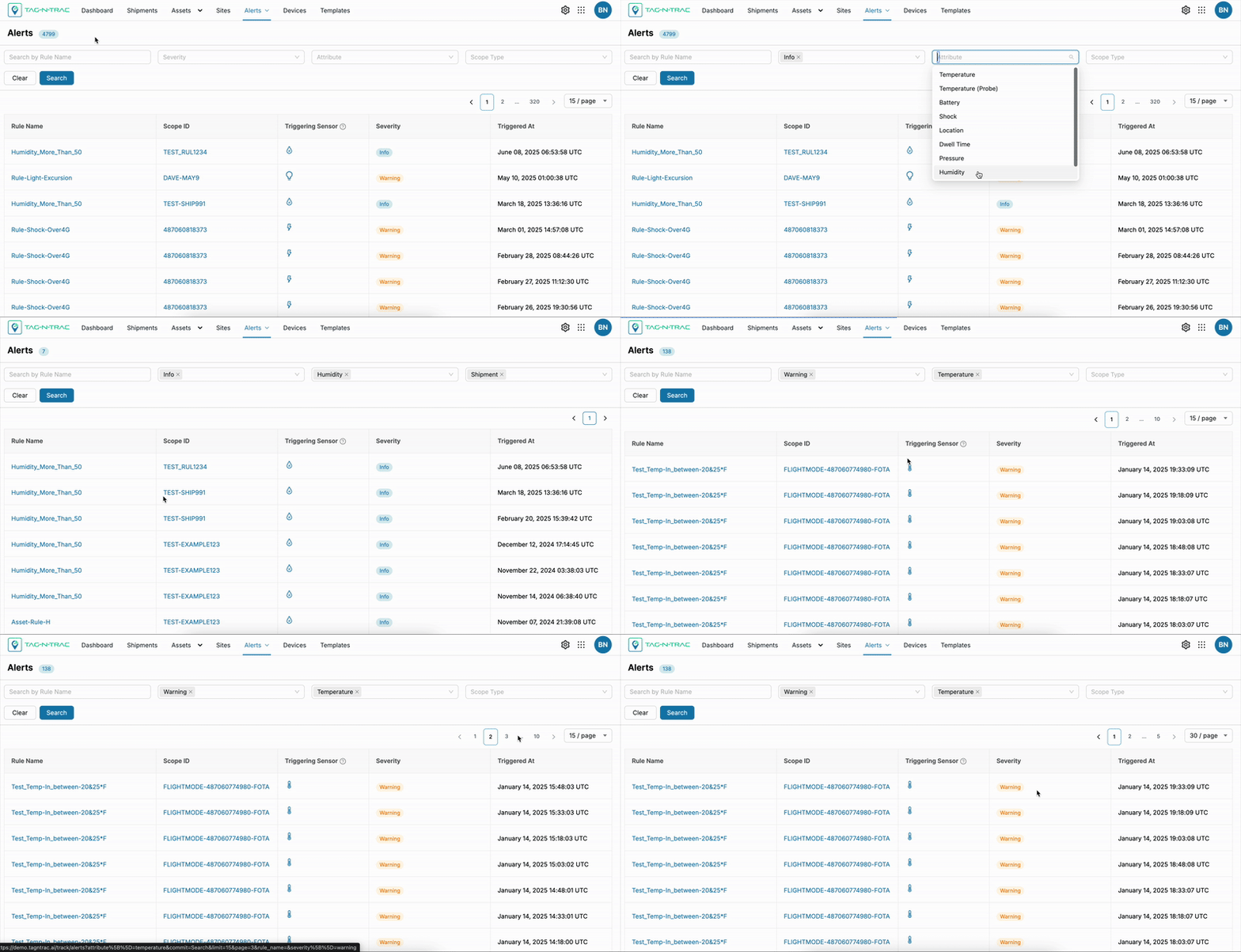
Fill in one or more fields in the filter section.
| Filter Option | Description | Example Values |
|---|---|---|
| Rule Name | A free-text field that allows you to search for alerts by their associated rule name. | N/A |
| Severity | Filter alerts based on severity level. | Info, Warning, Critical, Alarm |
| Attribute | Filter alerts based on the monitored attribute. | Temperature, Shock, Location, Pressure, etc. |
| Scope Type | Select a predefined scope to narrow down alerts by type. | Asset, Shipment |
| Search | Click Search to retrieve results. | N/A |
| Clear | Click Clear to reset the filters and start a new search. | N/A |
Alerts Management
The Alerts List feature integrates seamlessly with the Rules section Alerts menu. In the Rules section, you can:
Note: To create or modify an alert, refer to Rules section for instructions.
- Modify Alert Rules: Update the parameters for triggering specific alerts.
- Create New Rules: Define new alert rules based on business needs.
- Delete Rules: Remove obsolete or irrelevant alert rules.
Changes made in the Rules section will directly impact the alerts displayed in the Alerts module.
How Alerts Work
Alerts are predefined using the Rules feature in the Alerts menu and are automatically triggered when the system detects conditions that exceed configured thresholds.
Examples
- A temperature alert is triggered if a shipment's temperature exceeds the defined range.
- A critical battery alert is raised when a device's battery level drops below the set percentage.
- The platform provides real-time updates, ensuring prompt action on critical alerts.
Practical Tips
- Use Filters: Apply filters to quickly locate alerts that require attention.
- Monitor Severity: Prioritize responses based on the severity levels of alerts.
- Review Regularly: Periodically check and update alert rules in the Rules section to adapt to changing requirements.
- Track Attributes: Monitor key attributes like temperature and shock to ensure shipments and assets remain in optimal condition.
Rules
The Rules feature in the Assets menu allows users to define and manage custom monitoring rules that trigger alerts when specific conditions are met. Designed for flexibility and proactive monitoring, this feature supports a wide range of use cases, including:
- Detecting threshold violations for various parameters
- Monitoring geofence violations and more.

Rules
Users can create, edit, delete, and view custom rules, allowing the monitoring logic to adapt easily to changing operational requirements.
Each rule can be configured with alert criteria and linked to automated notifications, ensuring:
- Timely detection of critical events
- Comprehensive visibility into your logistics operations
Create Rule
The Rules feature enables users to define and automate rule-based alerts. These rules enable condition monitoring of sensor-based data by setting thresholds and receiving alert notifications (through email or web-hooks) whenever a condition is met. This allows users to proactively monitor environmental and operational metrics such as temperature, humidity, shock, and more.
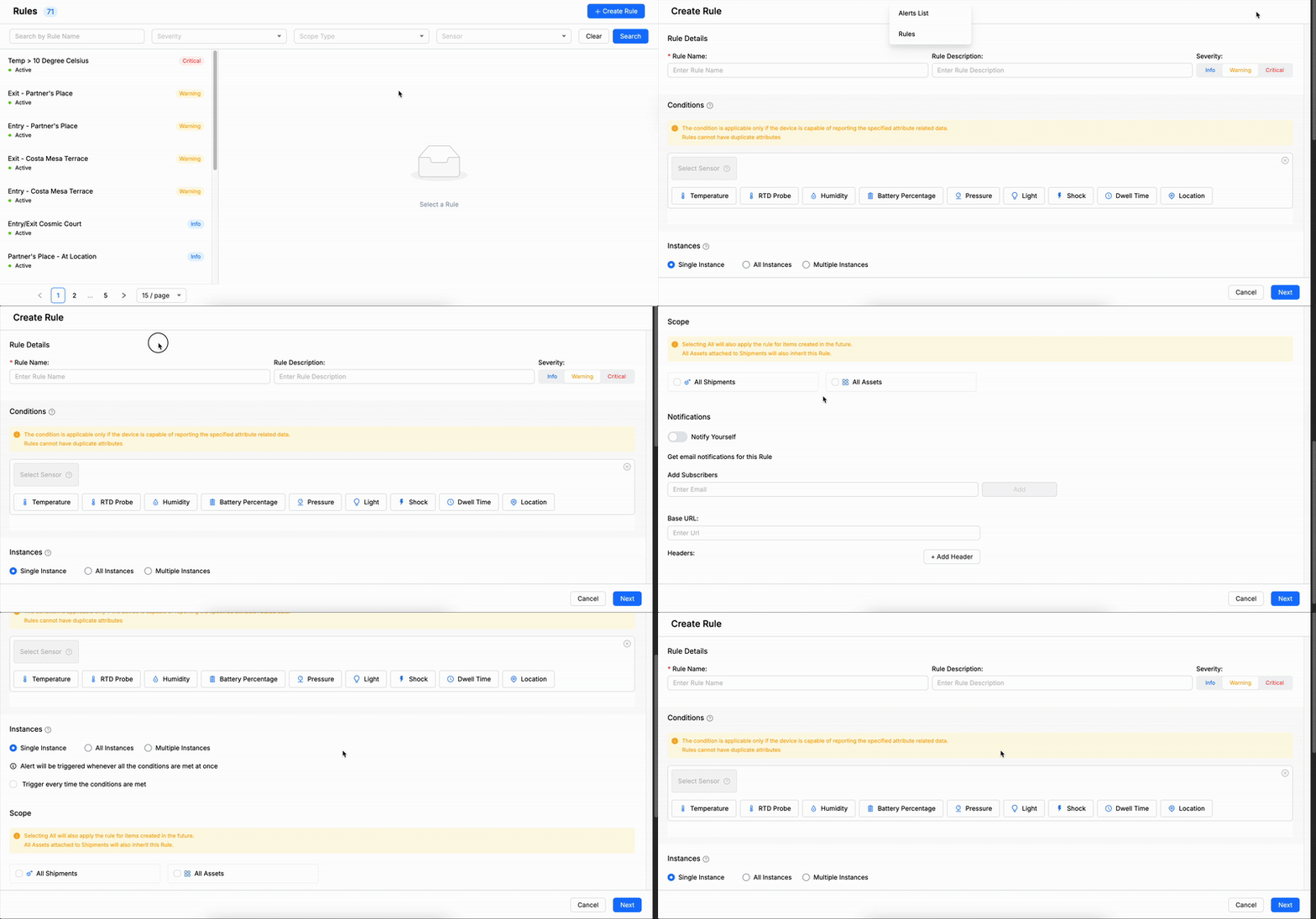
The Create Rule form includes the following sections where the users must enter the required data to create the rule.
- Rule Details – Provides the basic information about the rule.
- Conditions – Define the rule types, such as temperature, humidity, etc. and the threshold values.
- Instances – Specify the type of occurrence that triggers the event.
- Scope – Indicate the applicable scope, such as shipments or assets.
- Notifications – Manage email and webhook notifications linked to the rule.
To begin, click on the + Create Rule button, as shown in the following figure. This opens the rule configuration screen where you can input details to define a rule.
Create Rule
Rule Details
Fill in the rule metadata to appropriately identify and categorize the rule. This information helps users quickly locate and manage rules from the dashboard.

Rule Details
Configure Rule Details
To configure the rule details, provide the following metadata:
- Rule Name – Enter a unique, descriptive name to identify the rule.
- Rule Description – Provide a brief summary describing the rule’s purpose and intended monitoring behavior.
- Severity – Select the severity level from the dropdown to categorize the rule based on its impact:
- Info – General status updates; not critical.
- Warning – Highlights potential issues that may require attention.
- Critical – Denotes significant issues that require an immediate response.
Conditions
Set the rule types (e.g., temperature, humidity, etc.) and specify the threshold values that must be met for the alert to activate.
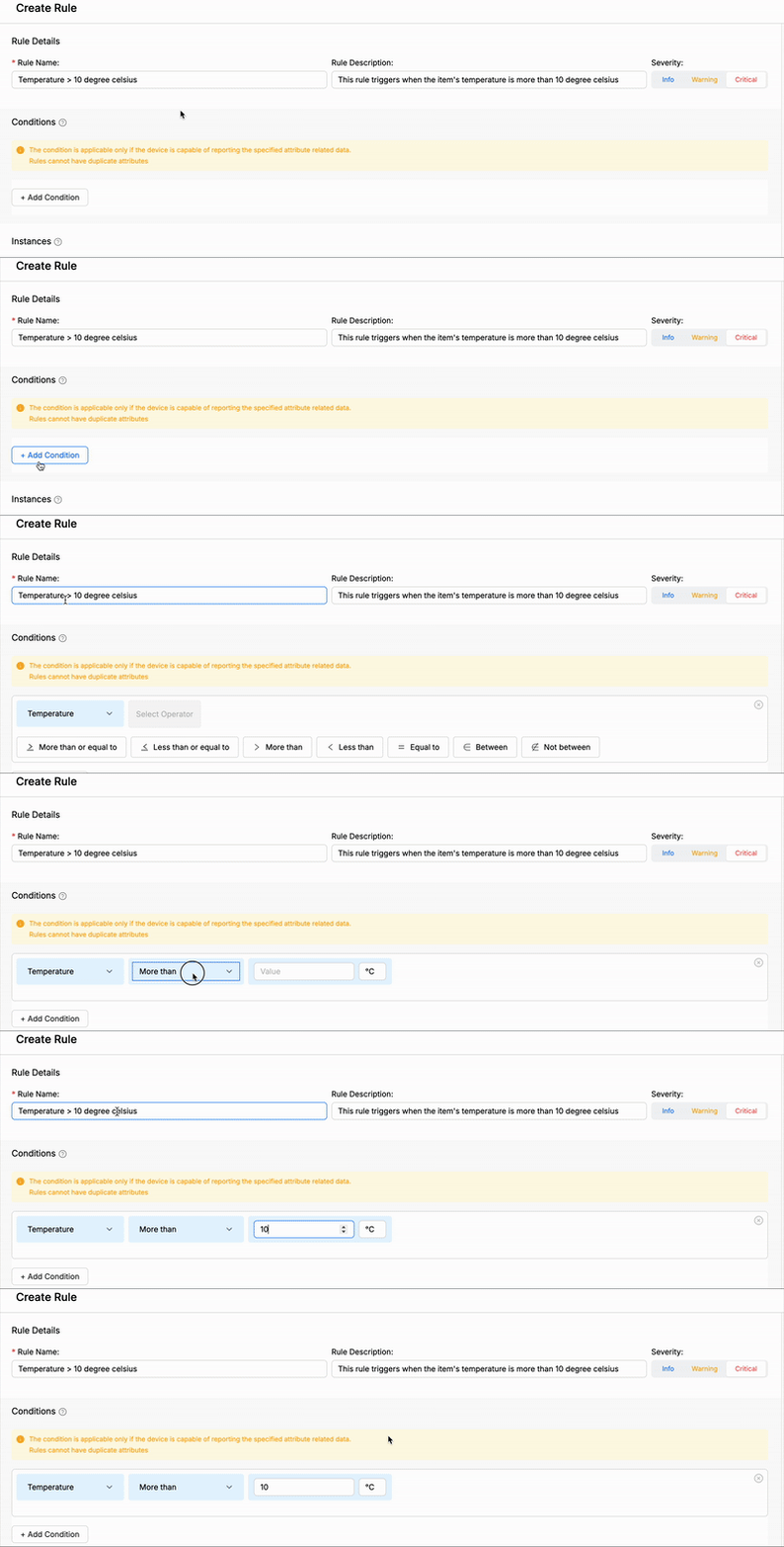
Rule Conditions
Configure Conditions
This Conditions determine when and why a rule triggers, based on sensor data.
Note:
- At the shipment creation stage, ensure you select a device capable of reporting the specified attribute data.
- Additionally, avoid creating a single rule with duplicate attributes to prevent conflicts.
- Attribute: Choose the attribute you want to monitor (examples: temperature, humidity and so on).
- Operator: Select a comparison logic (e.g., more than, equal to, in-between).
- Value: Input the threshold value.
Supported Attributes and Operators
Each attribute supports specific operators, and the users can choose the required units for the attributes:
| Attribute | Units | Operators |
|---|---|---|
| Temperature | °C / °F |
|
| Temperature (Probe) | °C / °F |
|
| Battery | % |
|
| Pressure | Psi |
|
| Humidity | % |
|
| Light | lux |
|
| Shock | G |
|
| Location | mi / kms |
|
| Dwell Time | hrs |
|
Attribute Summary (With Examples)
Here’s a brief explanation of each attribute:
| Attribute | Description | Example |
|---|---|---|
| Battery | Set alerts when battery levels drop below a threshold. | Battery is less than 20% |
| Dwell Time | Detects time spent in a location. | Dwell Time is more than or equal to 2 hrs |
| Humidity | Monitor for optimal moisture levels. | Humidity is between 30% and 60% |
| Light | Track lighting levels in a monitored space. | Light is less than 100 lux |
| Location | Geofence detection for asset tracking. | Location Geofence In (Warehouse) |
| Pressure | Useful in hydraulic or pneumatic systems. | Pressure is more than 100 Psi |
| Shock | Alert on impact detection. | Shock is more than 2 G |
| Temperature | Monitor temperature excursions. | Temperature is more than 30°C |
| Temperature (Probe) | Used for external temperature probe sensors. | Temperature (Probe) is not in between 5°C and 25°C |
Instances
The Instances setting allows you to specify the type of occurrence or frequency that triggers an alert.
You can define whether the alert should be triggered on a single occurrence, persistent conditions, or multiple consecutive occurrences within a defined time frame.
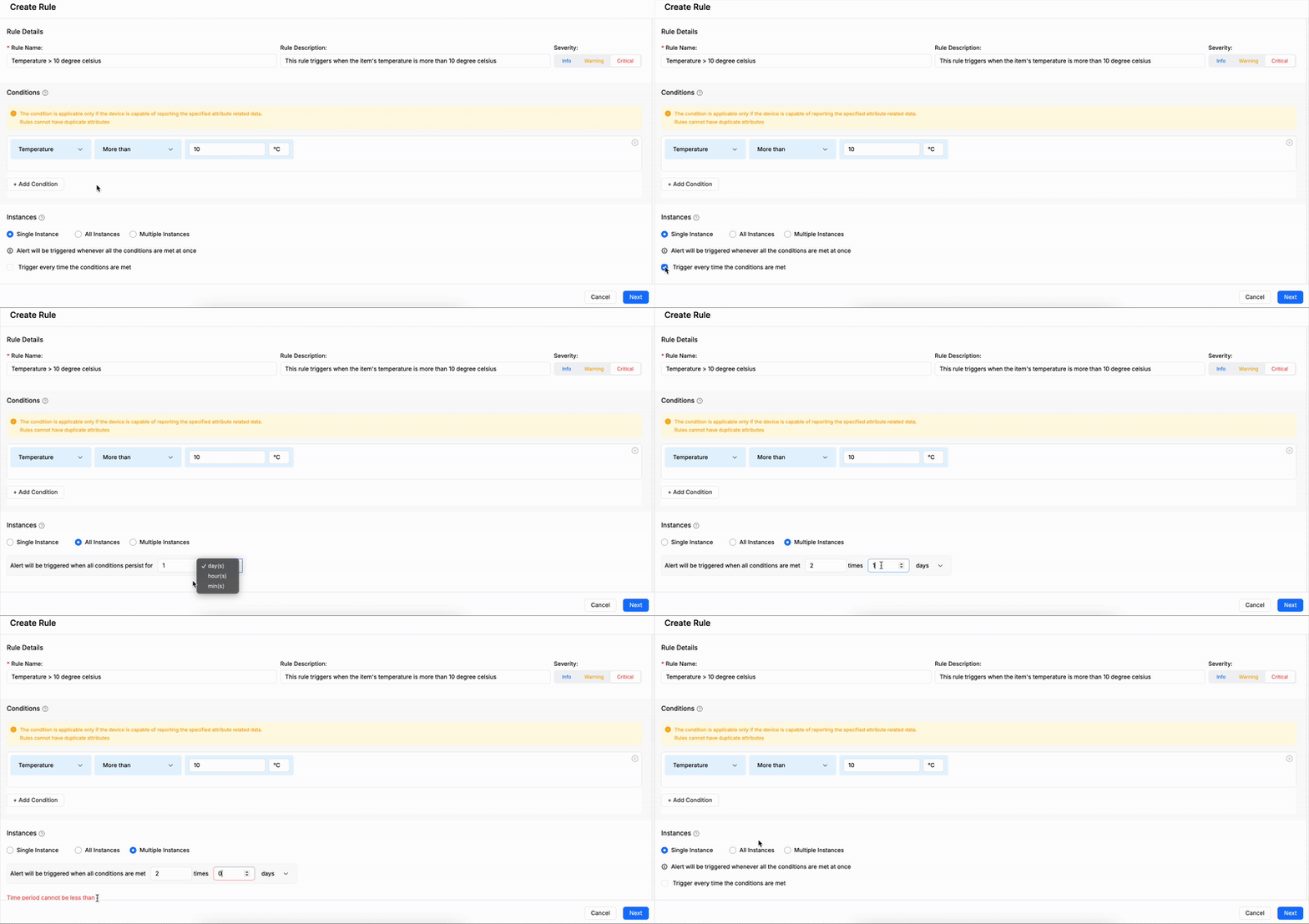
Rule Instances
Configure Instances
To configure Instances, select one of the following options:
- Single Instance – The alert is triggered one time when the defined conditions are met.
- All Instances – The alert is triggered only when all conditions persist for a specified duration.
- Define the time frame using days, hours, or minutes.
- Multiple Instances – The alert is triggered when the defined conditions are met a specific number of times within a defined time window.
- Specify the number of occurrences and select the time frame (days, hours, or minutes).
- Select the Trigger every time the conditions are met checkbox if you want to receive updates each time the defined conditions are satisfied.
Scope
Rule Configuration Parameters
To define a monitoring rule, complete the following fields:
- Rule Name: Enter a unique, descriptive name to identify the rule.
- Severity: Select the severity level from the dropdown menu to categorize the rule based on impact:
- Info: Indicates general status updates; not critical.
- Warning: Highlights potential issues requiring attention.
- Critical: Denotes significant issues requiring immediate response.
- Alarm: Signals problems that need action but may not be immediately critica.
- Event Label: Specify a short identifier (maximum 25 characters) to appear in event notifications.
- Rule Description: Provide a brief summary describing the rule's purpose and intended monitoring behavior.
- Valid Duration: Set the start and end dates during which the rule is active. Useful for time-bound or temporary monitoring scenarios.
- Trigger Type: Choose how the rule is triggered when its conditions are met:
- Continuous: The rule triggers every time the incoming data meets the condition.
- Example: If monitoring a pressure sensor with a threshold of 15psi, and the first reading is 15psi, an alert is triggered. If the next reading is 15.5psi, another alert is also triggered.
- Non-Continuous: The rule triggers once when the condition is met and resets only after the condition is no longer true.
- Example: For the same 15psi pressure threshold, an alert triggers the first time the reading exceeds 15psi. No additional alerts are sent until the pressure drops 15psi and then exceeds it again.
- Continuous Triggering: The rule triggers every time the condition is met by the incoming data, regardless of whether it was previously triggered.
- Example:
- If monitoring a pressure sensor with a threshold of 15 psi, and:
- The first reading is 15 psi → an alert is triggered.
- The next reading is 15.5 psi → another alert is triggered.
- Each qualifying reading results in a new alert, even if the condition remains true.
- If monitoring a pressure sensor with a threshold of 15 psi, and:
- Example:
- Non-Continuous Triggering: The rule triggers only once when the condition is first met, and it will not trigger again until the condition becomes false and then true again.
- Example:
- For the same 15 psi pressure threshold:
- The pressure rises to 15 psi → an alert is triggered.
- It stays above 15 psi (e.g., 15.5 psi, 16 psi) → no additional alerts.
- The pressure drops below 15 psi, then rises above it again → another alert is triggered.
- For the same 15 psi pressure threshold:
- Example:
Condition
This section determines when and why a rule triggers, based on sensor data.
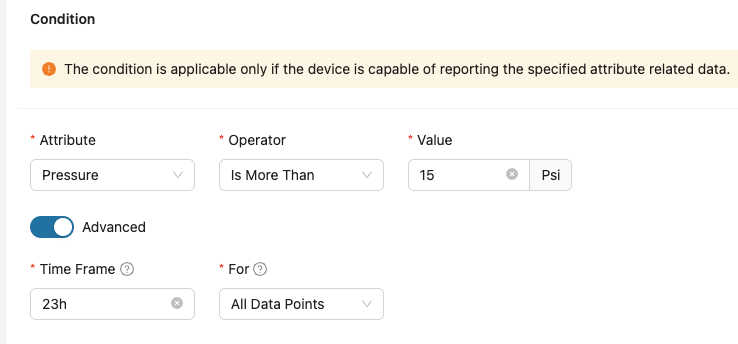
Conditons
- Attribute: Choose the attribute you want to monitor.
- Operator: Select a comparison logic (e.g., more than, equal to, in-between).
- Value: Input the threshold value.
- Advanced Options:
- Time Frame: Define a time window for evaluating data (e.g., "1d 2h 30m").
- For: Choose whether the rule applies to a count of specific data points.
- Data Point Count: Specify the number of data points to evaluate.
- All Data Points: The data will be evaluated based on all the data counts.
- Specific Data Points: The data will be evaluated for the specified data counts.
Supported Attributes and Operators
Each attribute supports specific operators, and the users can choose the required units for the attributes:
| Attribute | Units | Operators |
|---|---|---|
| Temperature | °C / °F |
|
| Temperature (Probe) | °C / °F |
|
| Battery | % |
|
| Pressure | Psi |
|
| Humidity | % |
|
| Light | lux |
|
| Shock | G |
|
| Location | mi / kms |
|
| Dwell Time | hrs |
|
Attribute Summary (With Examples)
Here’s a brief explanation of each attribute:
| Attribute | Description | Example |
|---|---|---|
| Battery | Set alerts when battery levels drop below a threshold. | Battery is less than 20% |
| Dwell Time | Detects time spent in a location. | Dwell Time is more than or equal to 2 hrs |
| Humidity | Monitor for optimal moisture levels. | Humidity is between 30% and 60% |
| Light | Track lighting levels in a monitored space. | Light is less than 100 lux |
| Location | Geofence detection for asset tracking. | Location Geofence In (Warehouse) |
| Pressure | Useful in hydraulic or pneumatic systems. | Pressure is more than 100 Psi |
| Shock | Alert on impact detection. | Shock is more than 2 G |
| Temperature | Monitor temperature excursions. | Temperature is more than 30°C |
| Temperature (Probe) | Used for external temperature probe sensors. | Temperature (Probe) is not in between 5°C and 25°C |
Final Steps
Once all required fields are filled:
- Double-check the configured rule for accuracy.
- Click the Create Rule button in the bottom-right corner.
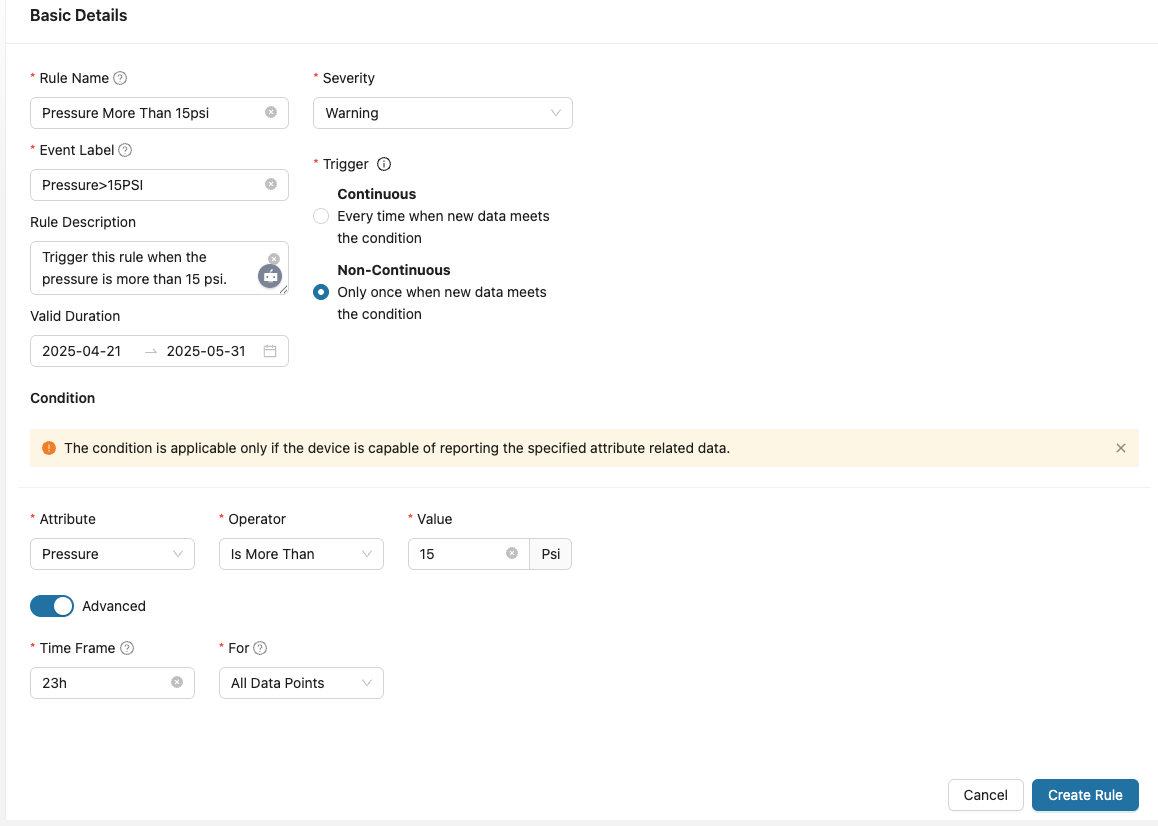
You have now successfully created a custom rule for tracking and monitoring!
Rules Search and Filter
The Rules submodule offers robust search and filtering capabilities, enabling efficient location and management of devices within your organization's inventory. Located at the top or side of the Devices page, the search and filter interface includes various fields that can be used individually or in combination to refine device listings.

Rules Search and Filter
Following is an overview of each available search/filter field and instructions on their usage:
- Search By (Rule Name): A free-text field for entering a rule name. Begin typing the Rule Name or a portion of it, and the system will dynamically filter the list to display matching entries.
- Example: Entering "Temperature Rule" or "Temp" will filter the list rules with this rule name, facilitating quick access to specific Rule Event.
- Event Label: A free-text field for entering event label. Begin typing the Rule Name or a portion of it and click Search and the system will filter the list to display matching entries.
- Example: Entering "Location_In/Out" or "Location" will filter the list rules with this event label.
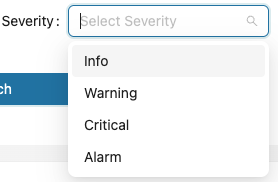
- Severity: This dropdown allows users to filter the rules by severe type.
-
Severity Types:
-
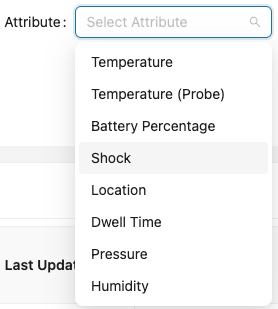
- Attribute: Filters devices based on the attribute type.
-
Attribute Types:
-
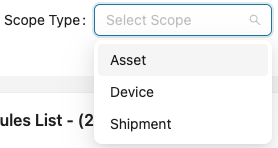
- Scope Type: Filters devices based on their intended tracking context within the Tag-N-Trac platform.
-
Scope Types:
-
After configuring the desired search and filter criteria, two primary actions are available:
- Search (Apply Filter): Executes the filter based on the specified criteria, updating the rules list to display matching entries.
- If matching rules are found, they will be listed accordingly.
- If no matches are found, a message such as No Data will be displayed.
- Clear (Reset Filters): Resets all filters to their default state, removing any text or selections made. This action returns the rules list to an unfiltered view, displaying all rules in the Platform.
Filtered results appear in the Rules List table, displaying key columns like Rule Name, Event Label, Scope, Status, Severity, Attribute Name, and other entries.
You can refine your filter criteria and click Search again or click Clear to reset and start over.
There’s no limit to how often you can search—this interactive process is designed to help you efficiently navigate and manage your Rule Events.
Rules List
The Rules List provides a comprehensive overview of all rule events within the platform. You can view the complete list or apply filters to narrow down the results based on specific search criteria. This guide explains the purpose of each column in the list and what kind of data appears in every row.
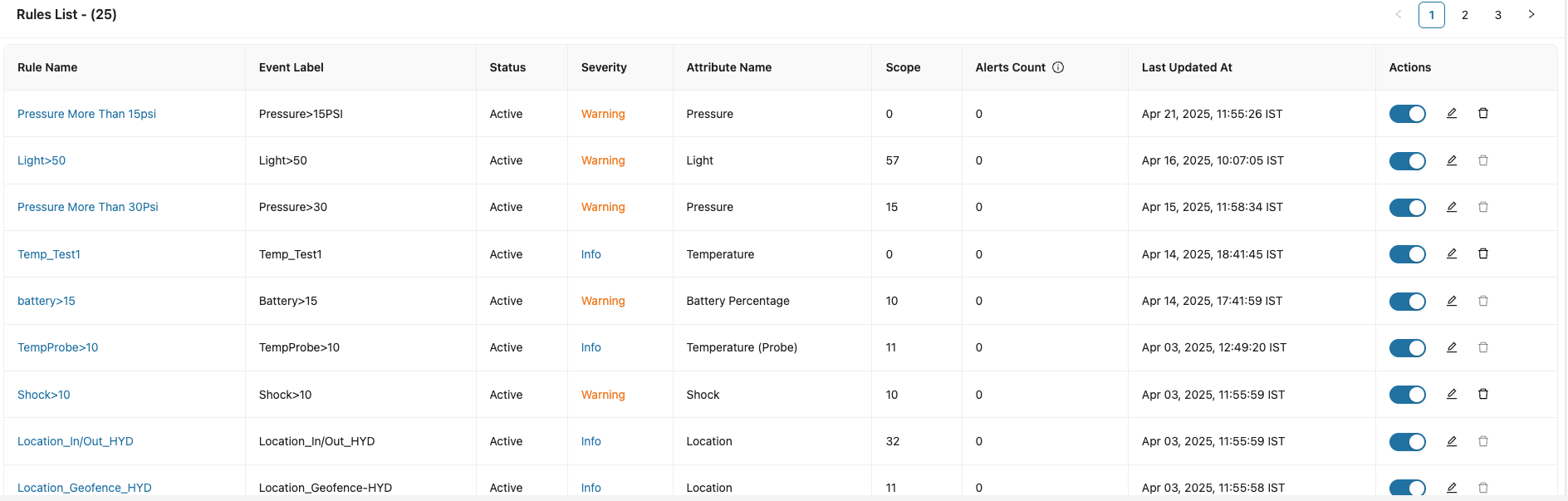
Rules List
Each row in the table represents one rule event and its relevant operational details.
| Column Name | Description |
|---|---|
| Rule Name | Displays the Rule Name entered during the rule creation process. |
| Event Label | Displays the Rule Event Label entered during the rule creation process. |
| Status | The status of the rule event whether the rule is active or inactive. |
| Severity | Displays the Severity type of the rule event. |
| Attribute Name | Displays the Attribute Name assigned during the rule creation process. |
| Scope | Displays the number of the linked Scope Type such as Asset, Device, and Shipments. |
| Alert Counts | Displays the alert triggered count in the last 24 hours. |
| Last Updated At | Displays the date and time stamp of the rule when it was updated/the device reported to platform last time. |
Actions
The Actions column in the Rules List enables you to Activate/Deactivate, Edit, or Delete a Rule Event.
- Activate/Deactivate: Click on the toggle button to change the Rule status.
- Edit: Click on the Edit (Pencil icon) to edit/modify the rule. To edit a rule, refer to section 12.2.1 Create Rule.
- Delete: Click on the Delete (Trash Can icon) to delete a rule.
Rule Dashboard
The Rule Dashboard provides a centralized view of any specific rule you've created. Once a rule is successfully created, it appears in the Rules List. Clicking on a rule’s name takes you to this detailed page. This feature enables users to monitor, manage, and understand rule behavior across shipments, assets, and devices.
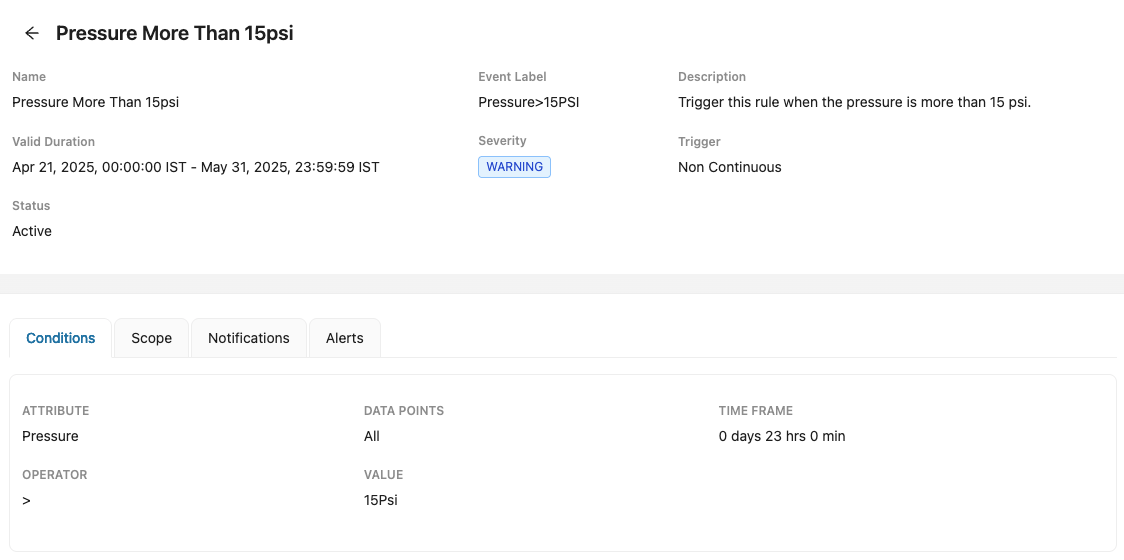
Rule Dashboard
The Rule Details Page includes essential tabs:
- Metadata
- Conditions
- Scope
- Notifications
- Alerts
Metadata
The Metadata section offers a snapshot of the basic information related to the rule.
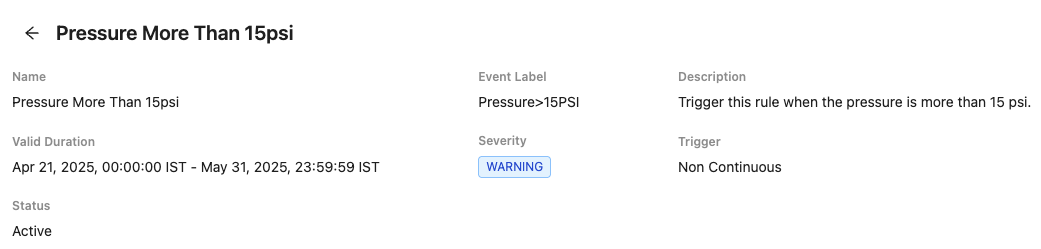
Metadata
The Metadata section displays the following information:
| Field | Description |
|---|---|
| Name | Title of the rule. |
| Event Label | Short identifier used to label the rule event. |
| Description | A brief explanation of what the rule does. |
| Severity | Indicates the importance level of the rule. |
| Trigger | The mode in which the rule is evaluated. |
| Status | Indicates if the rule is currently Active or Inactive. |
| Valid Duration | Start and end time for which the rule is applicable. |
This section gives a quick, yet detailed summary of what the rule is, how critical it is, and when it's applicable.
Conditions
The Conditions tab defines the logic that triggers the rule. These conditions are based on specific data attributes collected from your devices or assets.
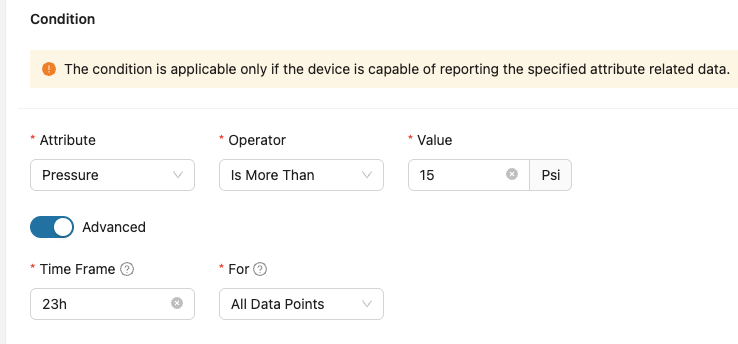
Conditions Tab
This tab displays the following information:
| Field | Description |
|---|---|
| Attribute | The data point monitored. |
| Operator | Comparison logic used. |
| Value | The threshold that will trigger the rule. |
| Data Points | Specifies whether the condition applies to all data or specific types. |
| Time Frame | Defines the time range the condition is evaluated over. |
This section is critical in understanding what exactly causes the rule to trigger.
Scope
The Scope tab lists the items (Assets, Devices, Shipments) to which the rule is applied.
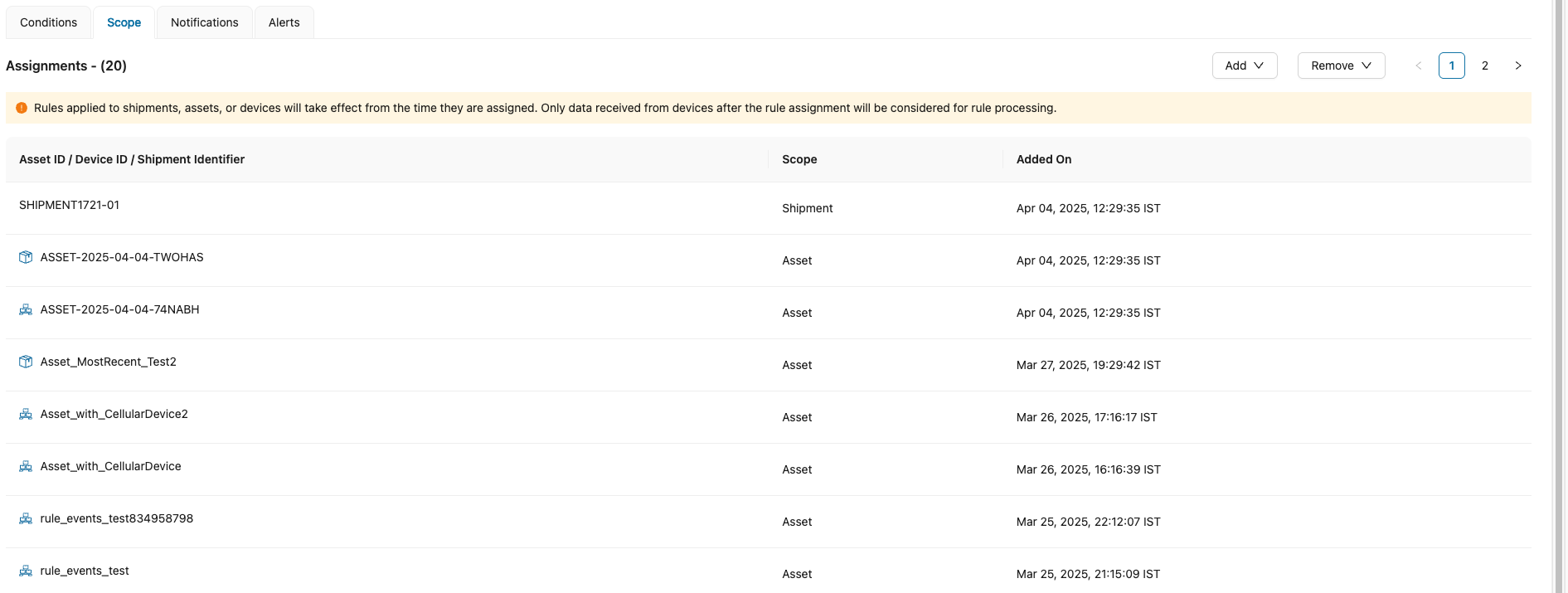
Scope Tab
This tab displays the following information:
| Field | Description |
|---|---|
| Asset ID/Device ID/Shipment Identifier | The unique identifier for the item. |
| Scope | Indicates whether it’s an Asset, Device, or Shipment. |
| Added On | Timestamp when the rule was linked to the specific scope. |
Note: Rules applied to shipments, assets, or devices will take effect from the time they are assigned. Only data received from devices after the rule assignment will be considered for rule processing.
This section helps track where and when the rule has been enforced.
Notifications
This tab allows users to subscribe to email alerts or configure webhooks for automated integrations.
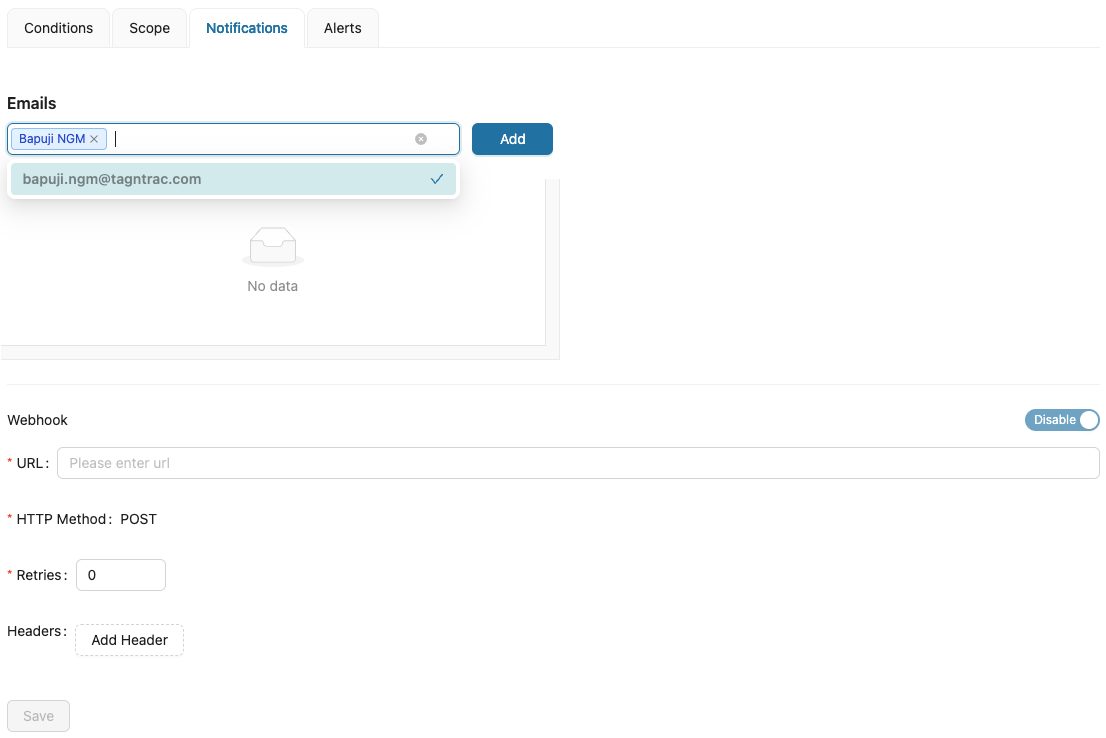
Notifications Tab
- Email Notifications:
- Add one or more email addresses to receive rule-trigger notifications.
- Click Add to subscribe and remove to unsubscribe.
- Webhook Configuration:
- URL: Endpoint where notifications should be sent.
- HTTP Method: POST (default method).
- Retries: Number of retry attempts on failure.
- Headers: Add custom headers if needed (e.g., authorization tokens).
- Toggle Webhook Activation: You can Enable or Disable the webhook with a simple switch.
- URL: Endpoint where notifications should be sent.
This ensures stakeholders are kept in the loop automatically, or systems can react in real-time.
Alerts
The Alerts tab displays all the triggered instances of the rule, offering insight into recent rule activity.
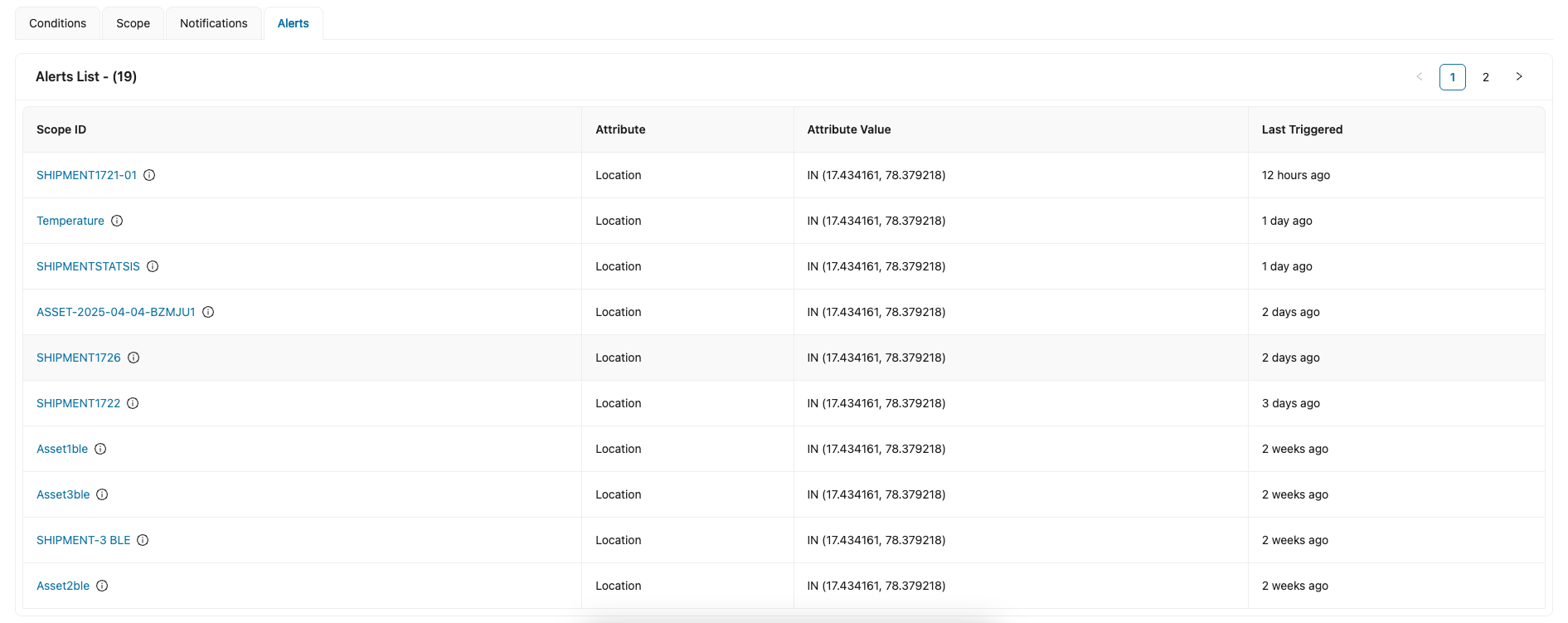
Alerts Tab
This tab displays the following information:
| Field | Description |
|---|---|
| Scope ID | Identifier of the Asset/Device/Shipment that triggered the alert. |
| Attribute | Data attribute that matched the condition (e.g., Location). |
| Attribute Value | Specific value that triggered the alert (e.g., Coordinates). |
| Last Triggered | Timestamp of the last time this rule was triggered for the corresponding scope. |
This section is useful for monitoring historical behavior and identifying patterns or irregularities.
Note: Clicking on a Scope ID will navigate to that specific entity’s detail page (Example: Shipment or Asset detail, Device).
Updated 11 months ago