
Devices
This section provides an overview of the technologies, device types, usage patterns, connectivity mechanisms, and functionality of devices in an IoT-based asset tracking and monitoring ecosystem provided by Tag-N-Trac.
These devices are designed and tailored for industries such as pharmaceuticals, logistics, and inventory management, where asset tracking, monitoring, and regulatory compliance are critical.
Device Technologies
Bluetooth Low Energy (BLE)
BLE is a wireless communication technology optimised for low-power, short-range data exchange. It is commonly used for communication between BLE tags and gateways.
Cellular Devices
Cellular technologies (GSM, LTE, CATM1, NB-IoT, etc.) enable long-range connectivity directly to the cloud. Cellular devices can also function as gateways.
Near Field Communication (NFC)
NFC allows short-range communication, typically between smartphones and NFC-enabled tags. Used primarily in inventory management scenarios.
Device Types and Categories
This topic lists Tag-N-Trac’s device offerings for tracking and condition monitoring ecosystems.
BLE Tags
Examples:
- FTL-1: Temperature Logger
- FTHL-1: Temperature and Humidity Logger
- FAT-100: Broadcast-only device, no data storage
- Rogue Label: Printable BLE label
Cellular Devices
Examples:
- Starscream: 20k data storage, designed by Tag-N-Trac
- Ironhide (SSL-300)
- Bumblebee (Phased out)
- ST-300 / ST-300 Air: Cellular device with BLE chip
- SAM-500 / SAM-500P
NFC Devices
Example:
- SAM-500
Sensor Capabilities
Most devices are equipped with the following sensors, depending on their form factor and purpose:
- Temperature
- Time Out of Refrigeration (TOR)
- Humidity
- Pressure
- Acceleration
- Shock
- Light
- Tampering
Devices Overview
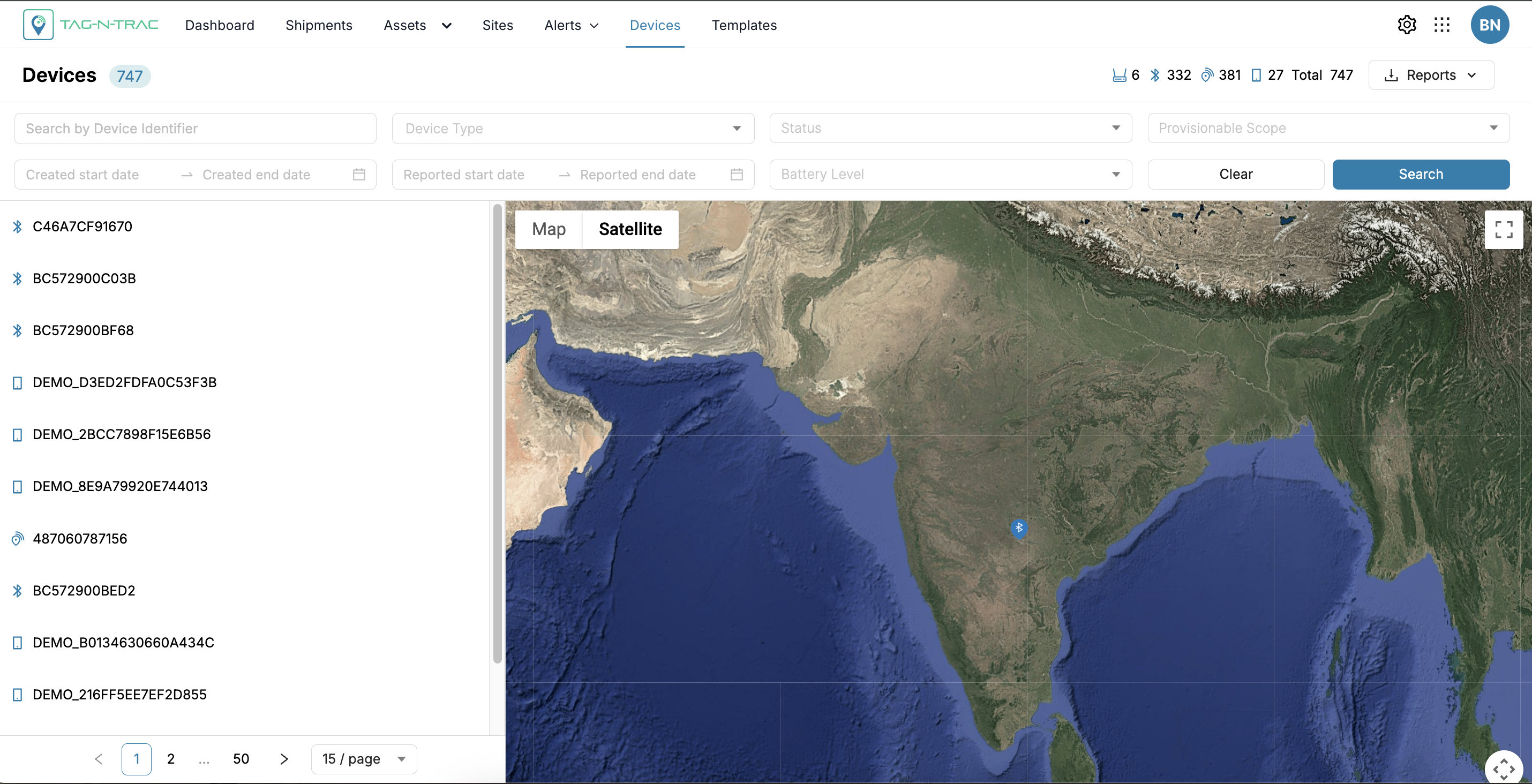
Devices
The Devices submodule enables users to view, search, and filter all devices associated with their platform. In practice, this means logistics and inventory managers can use the Devices module to:
- View all Devices Briefly: See a list of every tracker or sensor your company has onboarded, along with key details for each.
- Monitor Device Status and Health: Quickly check which devices are deployed, which are in stock, and if any are marked faulty or have low battery.
- Find Specific Devices: Locate a particular device by searching for its unique Device ID or filtering by attributes like model or type.
- Audit and Manage Inventory: Filter devices by different criteria (model, type, etc.) to understand your inventory (Example: How many of a certain model are in stock). This helps in planning deployments, maintenance, or purchasing new units.
Overall, users interact with the Devices submodule to efficiently manage device inventory and ensure that the right devices are available and functioning for tracking assets, shipments, sites, or fleets as needed.
Device Listing in the Platform
Devices will appear in the Devices submodule after they’ve been purchased by your company and onboarded into the Tag-N-Trac platform. Onboarding is typically handled by Tag-N-Trac during deployment, where each device’s unique information (such as ID and model) is registered to your tenant.
Once onboarded, devices automatically populate the Devices list for viewing and management. You cannot manually add devices through this interface—only devices provisioned by Tag-N-Trac will appear.
For example, if your company purchases 100 new trackers, Tag-N-Trac will onboard them to your account, and all 100 will be listed in the Devices submodule. Until a device is onboarded, it won’t be visible.
This process ensures that the Devices list always reflects the actual inventory your organization owns and can use within the platform.
Devices Search and Filter
The Devices submodule offers search and filtering capabilities, enabling efficient location and management of devices within your organization's inventory. Located at the top of the Devices page, the search and filter interface includes various fields that can be used individually or in combination to refine device listings.

Device Search and Filter
This section describes the filtering options available for locating and managing devices in the Tag-N-Trac platform. These fields support efficient device inventory navigation by applying various search criteria.
- Search by Device ID: A free-text field for entering a device’s unique identifier. Begin typing the full or partial Device ID to dynamically filter the list.
- Example: Entering
CORE-QA-CELLorCORE-QA-FAT100filters the list to show all matching devices.
- Example: Entering
- Device Model: A dropdown list that filters devices by model or product type. Device models correspond to hardware versions or specific capabilities.
- Example: Selecting
FAT100orST300shows only devices of that model.
- Example: Selecting
- Device Type: Filters devices by communication technology or category, such as Bluetooth or Cellular.
- Example: Selecting
BluetoothorCellulardisplays only Bluetooth-enabled or Cellular devices.
- Example: Selecting
- Status: Filters devices by their status in the inventory lifecycle. Common statuses include:
- Deployed – Devices currently active in the field.
- In Stock – Devices available for deployment.
- Faulty – Devices identified as malfunctioning or requiring maintenance.
- Example:
Filtering byReadyshows devices ready for deployment.
- Example:
- Provisionable Scope: Filters devices based on their intended use within the Tag-N-Trac tracking ecosystem. Available scopes include:
- Asset – For individual asset tracking.
- Site – For fixed-location monitoring.
- Shipment – For in-transit tracking.
- Fleet – For vehicle or mobile asset tracking.
- Example: Selecting
Shipmentdisplays devices configured for shipment tracking.
- Example: Selecting
- Created At Date Range: Filters devices by creation or registration date. Specify a start and end date to define the range.
- Example: Setting the range from
Jan 1, 2024toDec 31, 2024retrieves devices added during that year.
- Example: Setting the range from
- Reported At Date Range: Filters devices by the last data transmission date.
- Example: Selecting the last 7 days shows devices that have reported within that period.
- Battery Level: Filters devices based on current battery charge, expressed as a percentage.
- Example: Setting the filter to
< 20%identifies devices that may require battery replacement or charging.
- Example: Setting the filter to
- Clear: Click the Clear button to reset all fields to their default state, removing entered text and selections. Returns the device list to an unfiltered view.
- Search: Click the Search button to execute the filter based on the criteria entered. Updates the device list to show matching records.
Filtered devices are shown in the Devices List table. If matches are found, they are displayed in the list. If no matches are found, a message such as "No Data" appears.
You can refine your filters and click Search again or select Clear to start a new search. There is no limit to how often you can search—the interface is designed for continuous, interactive use to streamline inventory management.
Devices List
The Devices List provides a detailed overview of all the devices associated with your tenant account or those filtered by specific search criteria. This section breaks down the meaning of each column and explains what kind of data you’ll find in every row.
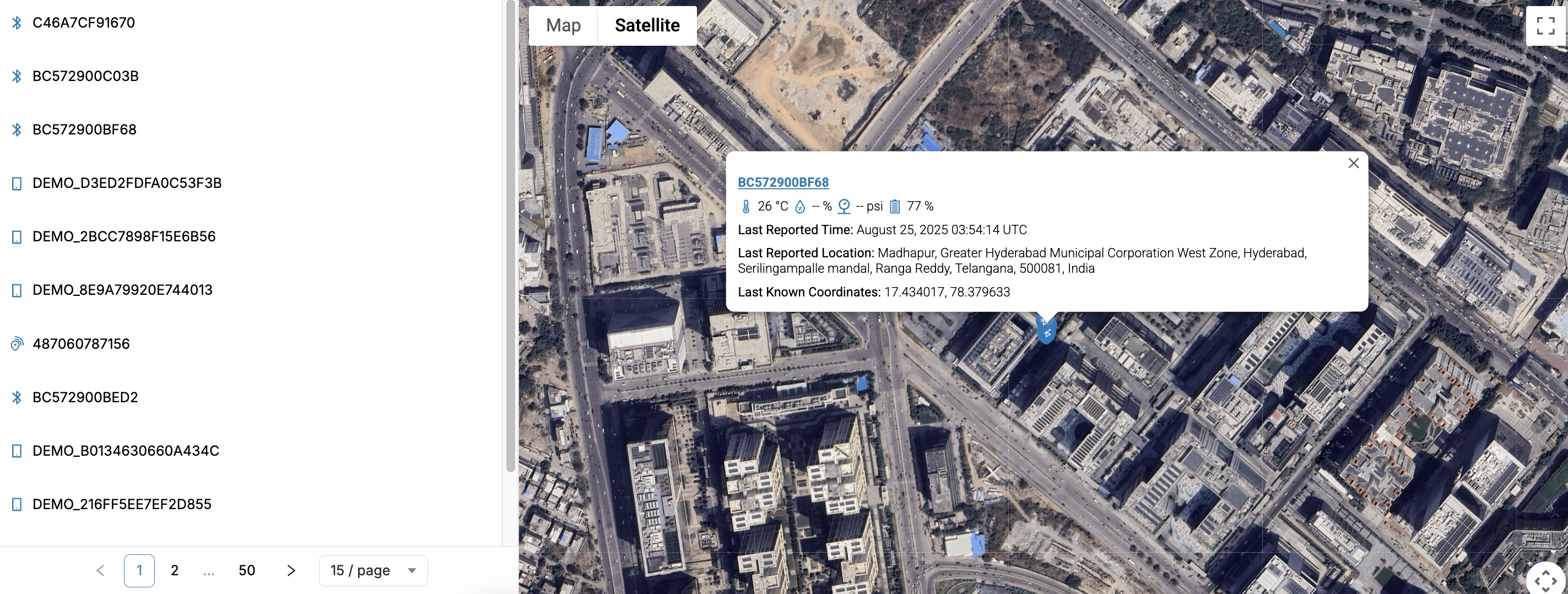
Device List
Viewing Device and Device Details Page
This section explains how to view device details and access the device details page using the Devices List, Drawer Window, and Map View.
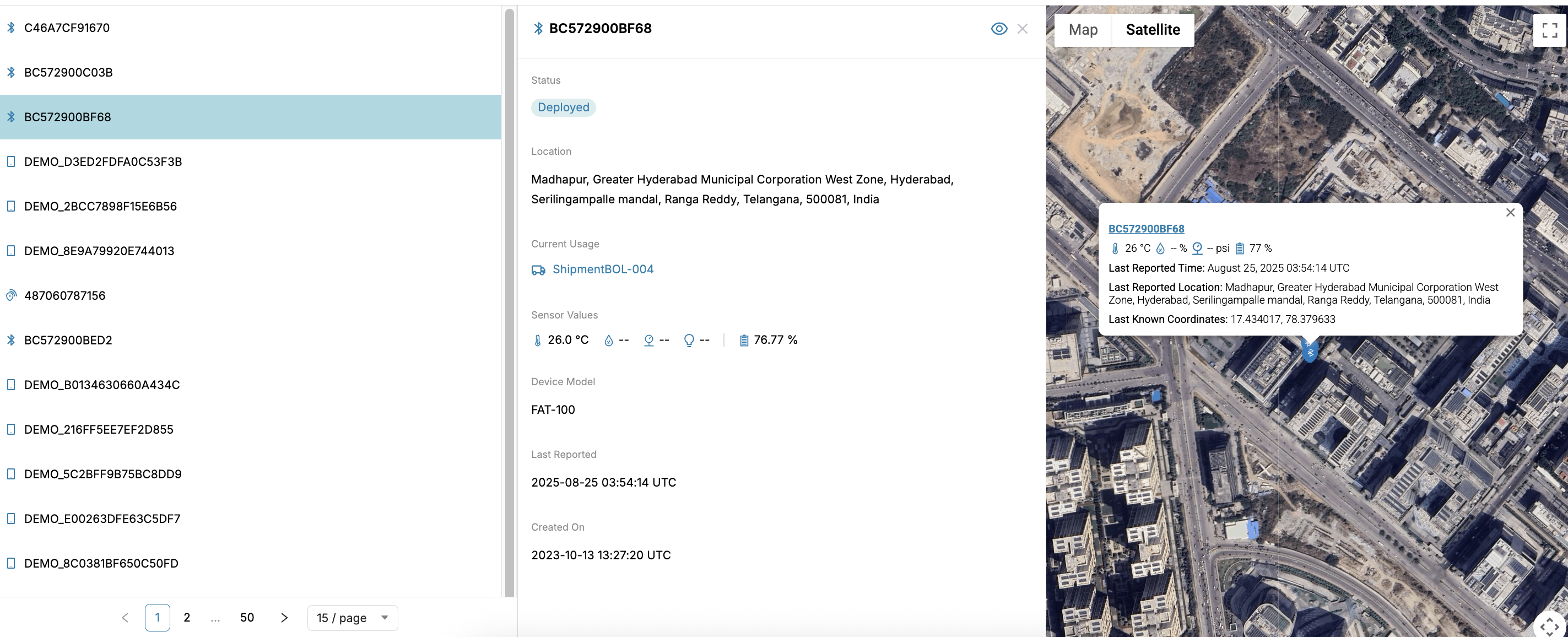
Device Drawer Window
View Device Details
- Navigate to the Devices List on the left panel.
- Click on the required device ID.
- A drawer window opens on the right, displaying key information such as:
- Status (Available, Deployed, or Faulty)
- Location
- Current Usage (Asset, Shipment, or Site)
- Sensor Values (temperature, humidity, and so on.)
- Device Model
- Last Reported Date & Time
- Creation Date
Tip: A popup also appears on the map showing device-specific details, including last known coordinates and sensor readings.
View Device Details Page
You can open the full device details page in two ways:
- Option 1: In the drawer window, click the eye icon (👁️) at the top-right corner.
- Option 2: In the map popup, click on the device ID link.
This will take you to the Device Details Page, where you can view comprehensive information about the selected device.
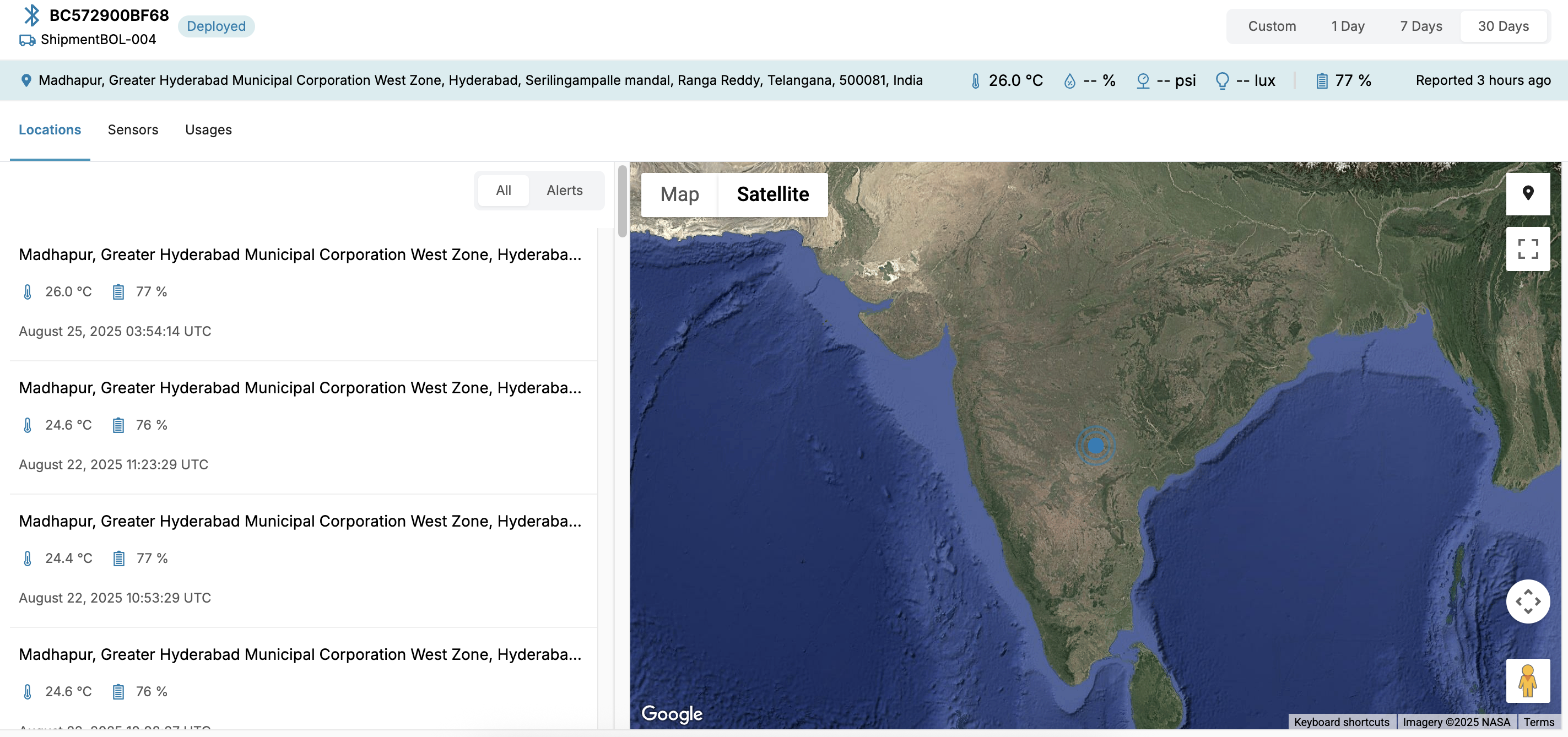
Device Details Page
Example
In the screenshot:
- The device BC572900BF68 is selected.
- The details page displays data like status (deployed), temperature (26°C), pressure, light and humidity (76.77%).
- The map popup provides quick insights such as:
- Last Reported Time:
2025-08-25 03:54:14 UTC - Location: Madhapur, Hyderabad
- Coordinates:
17.434017, 78.379633
- Last Reported Time:
Data Filter Options
The user can filter the device events data by using the date filter feature.
- Date Filters: The Date Filters feature allows you to filter device data based on specific time periods. This helps you quickly analyze recent activity or focus on a custom date range for deeper insights.
Available Filter Options
-
1 Day: View data reported within the last 24 hours.
-
7 Days: Filter and view data collected over the past 7 days
-
30 Days: Display device data from the last 30 days.
-
Custom Date Range: Specify a custom time frame by selecting the date range.
Tip: Use the Custom Date Range option when you need to analyze device performance or sensor readings for a specific timeframe beyond the default options.
Location and Timestamp List
The location and timestamp list provides a hierarchical view of the locations an asset has visited, starting with the most recent. Each entry includes the exact date and time in your time zone, ensuring precise tracking.
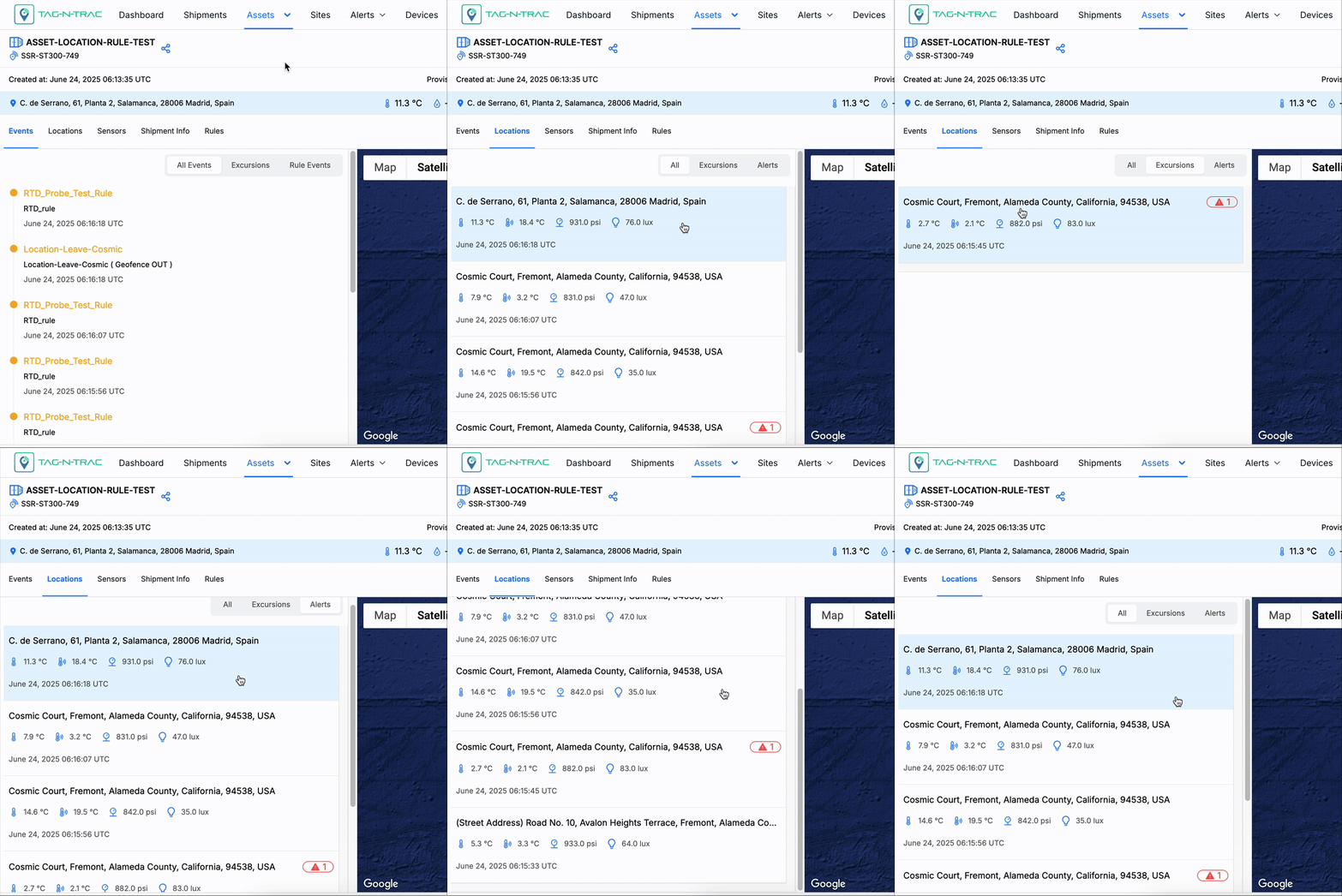
Location and Timestamp List
Accessing Location and Timestamp List Tab
- In the Devices > Devices List menu, click on an device to view the Device Details Page.
- Click on the Location and Timestamp List tab to view the following details.
- Location Hierarchy: A hierarchical list of locations visited by the asset, starting with the most recent. Scroll down to see more locations on the list.
- Timestamp Format: Each location entry is accompanied by the precise date and time in your time zone.
Sensors
The Sensors tab provides real-time and historical readings from various sensors associated with the asset. This allows users to monitor environmental and operational conditions effectively.
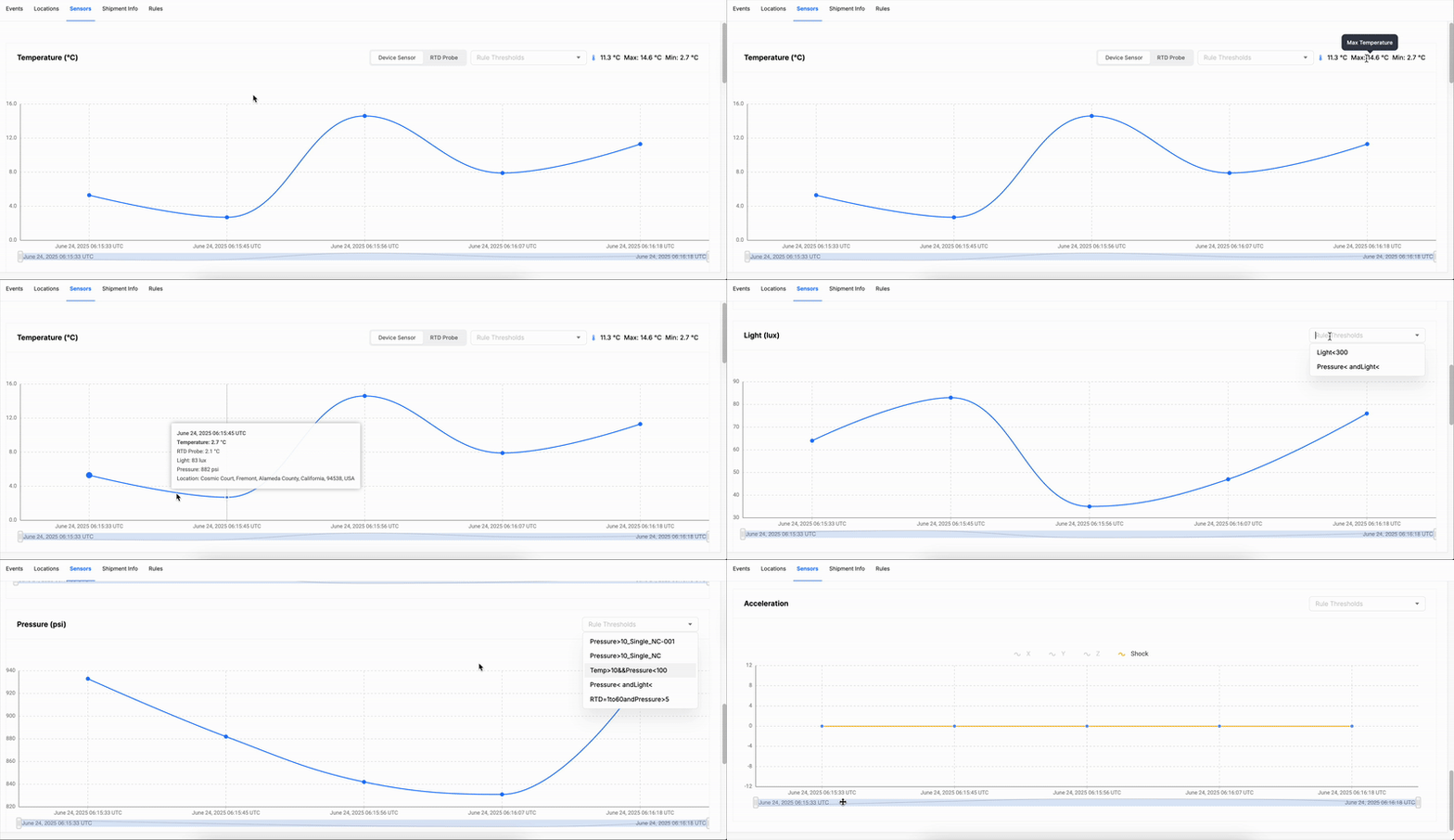
Sensors Tab
Accessing Sensors Tab
- In the Devices > Devices List menu, click on an device to view the Devi Details Page.
- Click on the Sensors tab to view the details.
- Use the zoom and pan tools to focus on specific periods or details.
- Expand graphs for a full view or collapse them for a compact layout.
This tab offers a comprehensive way to analyze sensor data, ensuring timely insights for asset management.
This tab displays the following information:
- Sensor Readings:
- Includes data for:
- Temperature: Displays temperature variations over time.
- Light: Tracks light intensity levels.
- Pressure: Records atmospheric or applied pressure.
- Humidity: Logs humidity levels.
- Battery: Indicates battery status or levels.
- Acceleration: Captures movement or vibration data.
- Includes data for:
- Interactive Graphs: The platform provides interactive graphs to help you visualize and analyze data more effectively. These graphs support multiple viewing and navigation options for enhanced usability.
- Maximize / Minimize: Use the expand icon located on the top right corner of the graphs to enlarge or minimize individual graphs for easier viewing.
- Zoom and Pan: Use the brush-style slider located beneath each graph to adjust the visible time range:
- Zoom: Drag the edges of the slider to zoom in or out.
- Pan: Move the entire slider left or right to navigate across the timeline.
- Show Rule Thresholds: To display threshold data for selected sensor readings:
- Choose the Rule Thresholds to display the threshold data.
Usages Tab
The Usages tab helps users view and manage assets/shipment details associated with a specific device. Below is a breakdown of its key features and guidance on how to use it.
Accessing Sensors Tab
- In the Devices> Devices List menu, click on an asset to view the Device Details Page.
- Click on the Usages tab to view the details.
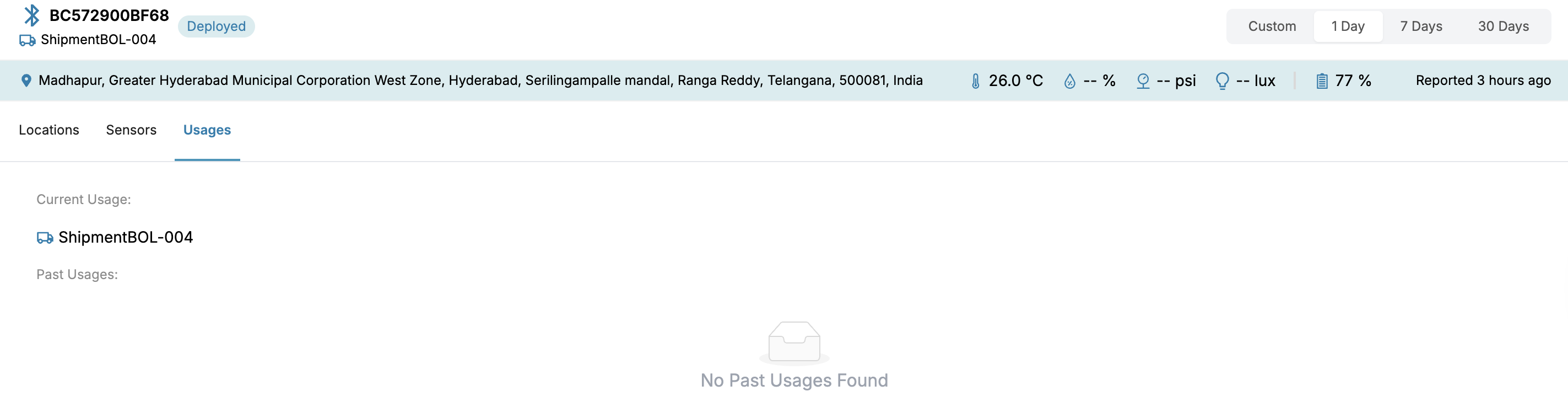
Usages Tab
This tab provides a clear and organized overview of shipment-related information, making it easy to track and manage assets effectively.
This tab displays the following information:
- Current Asset/Shipment Details:
- Asset/Shipment Identifier: Displays a unique identifier to track the current shipment.
- Click the Asset/Shipment Identifier to view its details page.
- Past Shipments:
- Shows the history of shipments related to the asset.
- If no past shipments are available, a message will indicate that there are none.
Updated 11 months ago