Profiles
The Profile sub-module enables users to create and manage Device and Temperature configurations for Tag-N-Trac trackers—efficiently and at scale.
Instead of updating each tracker manually, you can apply settings to multiple devices at once. This bulk configuration helps streamline operations and ensure consistency across your fleet.
What You Can Configure
Using the Profile sub-module, you can configure:
-
Device Profile
- Upload interval
- Sensor interval
-
Temperature Profile
- Threshold limits
- Alert conditions
- GPS functionality
- Bluetooth functionality
- Power button behaviour
- Sampling frequency
Note: All configurations are applied remotely—no physical access to trackers is required.
Benefits of Using Profiles
- Save time by applying configurations to many trackers simultaneously.
- Ensure consistent setup across all devices.
- Minimize manual effort and reduce errors.
How It Works
The Profiles page allows you to create, manage, and apply named configuration profiles for your account. These configurations control how your trackers behave in the field.
All new trackers assigned to the account will automatically receive the default configuration, unless specified otherwise.
What You Can Do on This Page
From the Profiles page, users (with the appropriate permissions) can:
- View all configurations created under the account.
- Create a new configuration to apply specific device behaviors.
- Edit, delete, or set a configuration as default via the options menu.
Note: Only users with Super Admin permissions can make edits or delete profiles.
Understanding Tracker Intervals
Intervals are critical configuration settings that define how frequently your tracker collects and transmits data. Properly setting these intervals ensures data accuracy, power efficiency, and reliable tracking.
Upload Interval
The Upload Interval determines how often the tracker connects to a network to upload collected data to the platform.
Sensor Interval
The Sensor Interval specifies how often the tracker activates its internal sensors to record data (e.g., temperature).
Note: If a sensor measurement occurs without a simultaneous transmission, and GPS/Wi-Fi is unavailable, the location may be missing. In such cases, the platform falls back on cellular triangulation, which only happens during transmissions.
Configuration Best Practice
The Sensor Interval must always be equal to or shorter than the Upload Interval.
This ensures:
- All collected data can be transmitted during the next scheduled connection.
- Location and sensor readings are reliably synced and reported.
Device Profiles
A Device Profile defines a reusable set of tracker settings that can be applied during shipment creation. This eliminates the need to configure each device manually, saving time and ensuring consistency across your tracking fleet.
What Is a Device Profile?
Device Profiles control how your Tag-N-Trac trackers operate by defining:
- Sensor Interval: How often the tracker collects sensor data
- Upload Interval: How often the tracker uploads collected data to the platform
- Optional BLE Scanning: Whether the device scans for BLE tags nearby
Interval Rules
- Sensor Interval: Minimum = 5 minutes, Maximum = 1440 minutes
- Upload Interval: Minimum = 10 minutes, Maximum = 1440 minutes
Note: Sensor Interval must always be less than or equal to the Upload Interval
How to Create a Device Profile
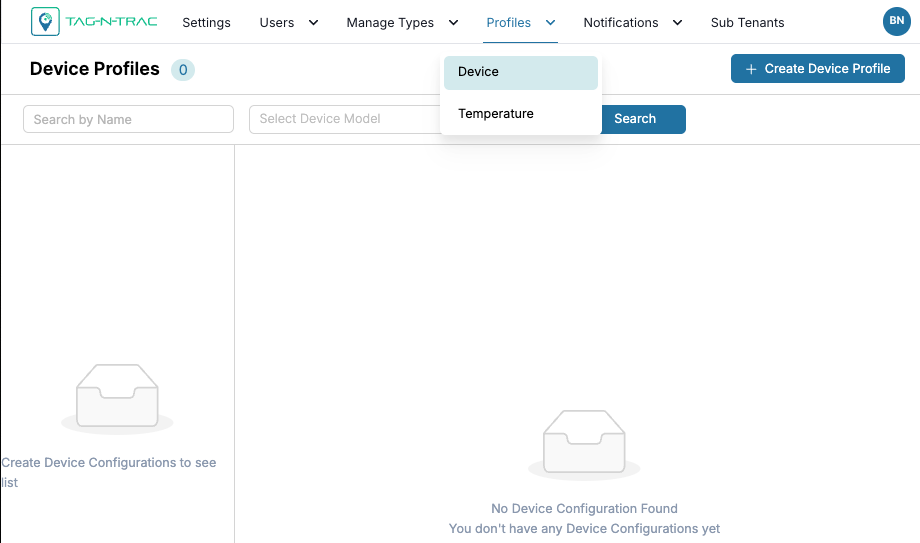
- Navigate to Profile > Device
- Click Create Device Profile
- Fill in the following fields:
- Device Profile Name: Enter a unique, descriptive name.
- Device Profile Description: Add context about the profile.
- Set the Intervals:
- Sensor Interval: Frequency of sensor data collection (in minutes).
- Upload Interval: Frequency of data upload to the platform (in minutes).
- Under Device Settings:
- Check BLE Scan if your environment uses BLE tags and scanners.
- Click Create Device Profile to save your configuration.
Temperature Profiles
Temperature Profiles are reusable configuration templates that define how your Tag-N-Trac trackers monitor and report temperature data during shipments. These profiles allow you to standardize temperature monitoring behaviors such as start delays, acceptable temperature ranges, alert thresholds, and trip durations, ensuring consistency, compliance, and quality control across your supply chain.
Using Temperature Profiles, you can:
- Eliminate manual setup for each tracker.
- Apply consistent monitoring rules across all devices.
- Improve efficiency, accuracy, and response time for temperature excursions.
Temperature Profiles are useful for organizations transporting temperature-sensitive goods, where maintaining specific environmental conditions is critical.
What is a Temperature Profile?
A Temperature Profile defines how your Tag-N-Trac trackers monitor and report temperature conditions during a shipment. These profiles are essential for maintaining compliance, ensuring product quality, and responding to temperature excursions in real time.
Temperature Profiles include:
-
Delay Settings
-
Threshold Settings
-
Device Behavior
-
Trip Duration
-
Threshold Rules
Note: All threshold fields must be configured carefully to match product sensitivity and compliance needs.
How to Create a Temperature Profile
To create a temperature profile:
- Go to Profiles > Temperature.
- Click + Create Temperature Profile.
- Fill in the following fields.
Profile Information
- Profile Name: Enter a unique name for the profile.
- Profile Description: Add a brief description of the profile’s purpose.
Delay Settings
| Field | Description |
|---|---|
| Start Delay | Time (in minutes) before temperature monitoring begins after device activation. |
| Stop Delay | Time (in minutes) after which temperature monitoring stops. |
| Button Ignore Delay | Time (in minutes) to ignore button presses for monitoring. |
Thresholds
Thresholds determine when alerts are triggered based on temperature conditions.
| Field | Description |
|---|---|
| Low | Minimum acceptable temperature in °C. |
| High | Maximum acceptable temperature in °C. |
| Count | Number of consecutive violations required to trigger an alert. |
| Lifetime Low | Total time spent below the low threshold over the device’s lifetime. |
| Lifetime High | Total time spent above the high threshold over the device’s lifetime. |
| Lifetime Count | Total number of threshold violations during the device's lifetime. |
Device Settings
- Start Button Needed: Toggle on if the tracker requires a manual button press to begin monitoring.
- Sensor Selection: Choose the sensor type:
- Internal: Default onboard sensor.
- RTD: External RTD sensor, if used.
Trip Duration
- Maximum: Set the maximum trip duration (in hours).
- Once all required fields are filled in, click Create Temperature Profile to save.
Benefits of Using Profiles
- Time-Saving: Apply predefined settings to multiple devices at once.
- Consistency: Standardized configuration across all devices.
- Reduced Errors: Minimizes manual setup and misconfiguration.
Updated about 1 year ago