Notifications
Real-time notifications, tailored to your workflow or operational needs.
The Notifications tab lets you subscribe to updates about shipments, assets, or devices. Notifications help you stay informed about important system events in real-time.
You can choose how notifications are delivered:
- Emails – Receive alerts in your inbox for quick access.
- Webhooks – Receive event data directly to a system endpoint for automated processing.
Select the method that fits your workflow or operational needs.
Accessing Notifications Menu
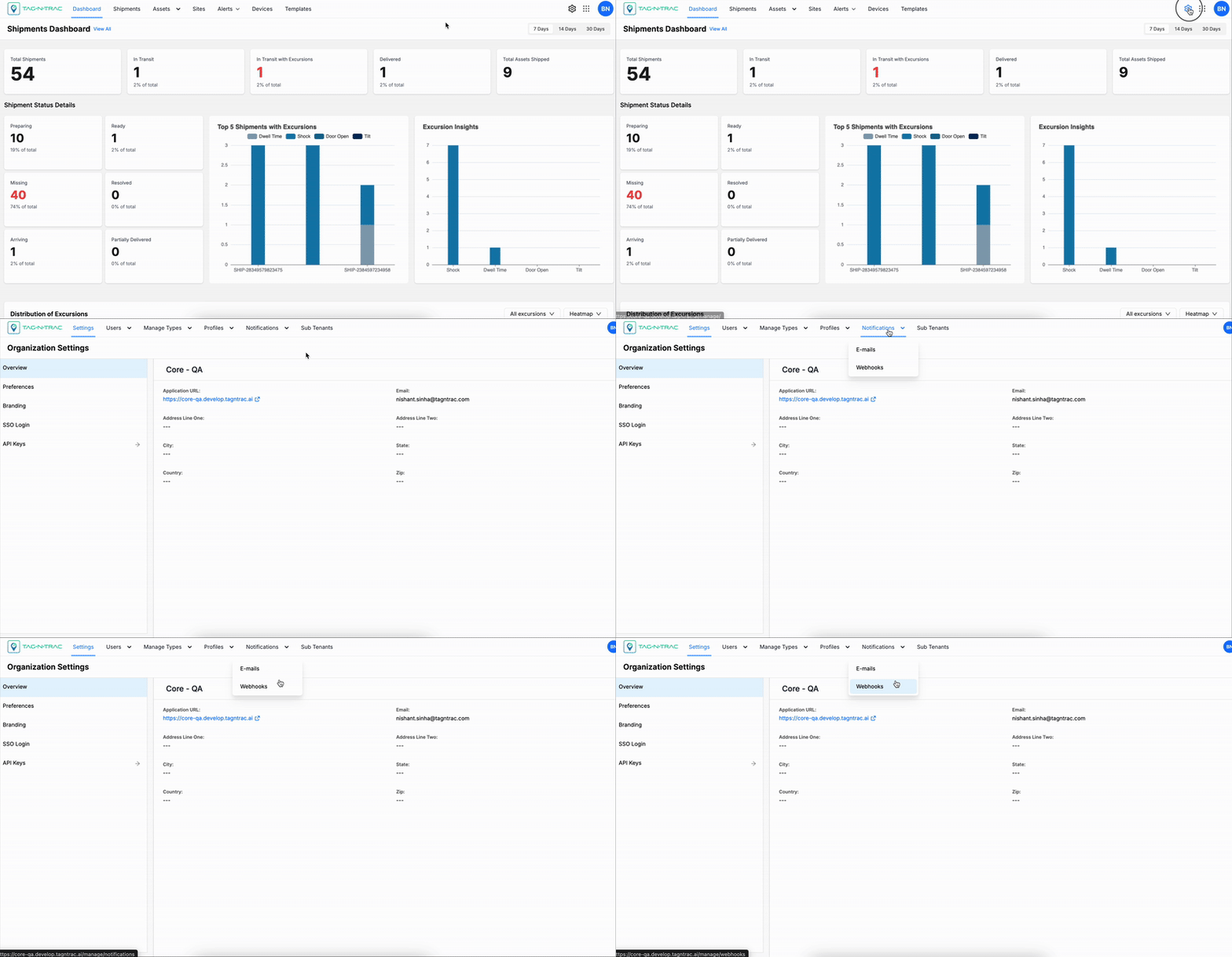
To access the Notifications menu:
- Log in to the Relativity Platform.
- In the top-right corner, select the Manage (⚙️) icon.
- Choose Notifications from the menu to open the event types (Emails or Webhooks).
Email Notifications
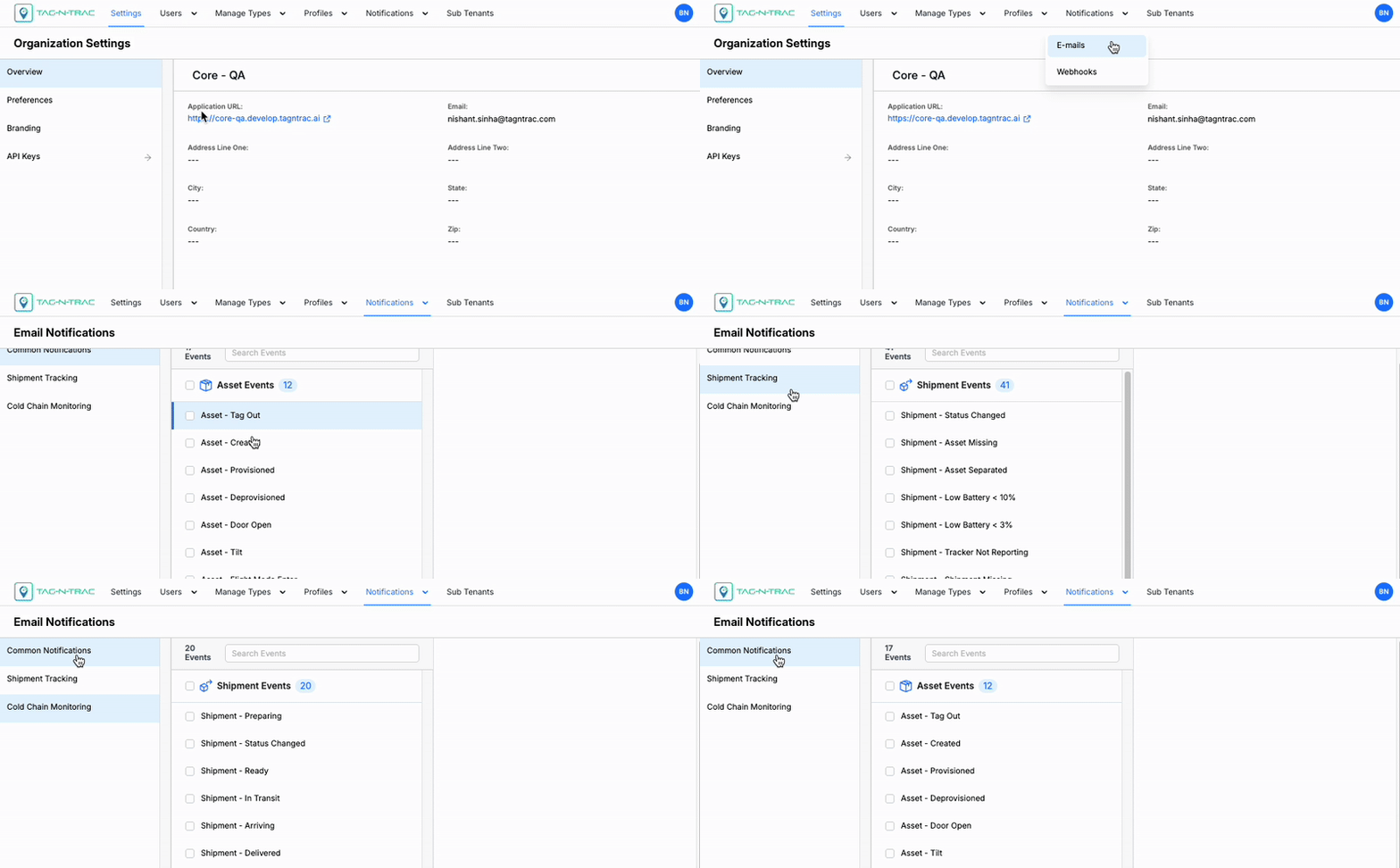
The Email Notifications section shows a searchable list of system-triggered events that you can subscribe to for real-time email alerts.
Email Notifications
Events are grouped into following two categories:
- Common Notifications
- Asset Events
- Device Events
- Site Events
- Shipment Tracking
- Shipment Events
- Cold Chain Monitoring
- Shipment Events
Selecting an event from the list opens its subscription settings.
Common Notification Events
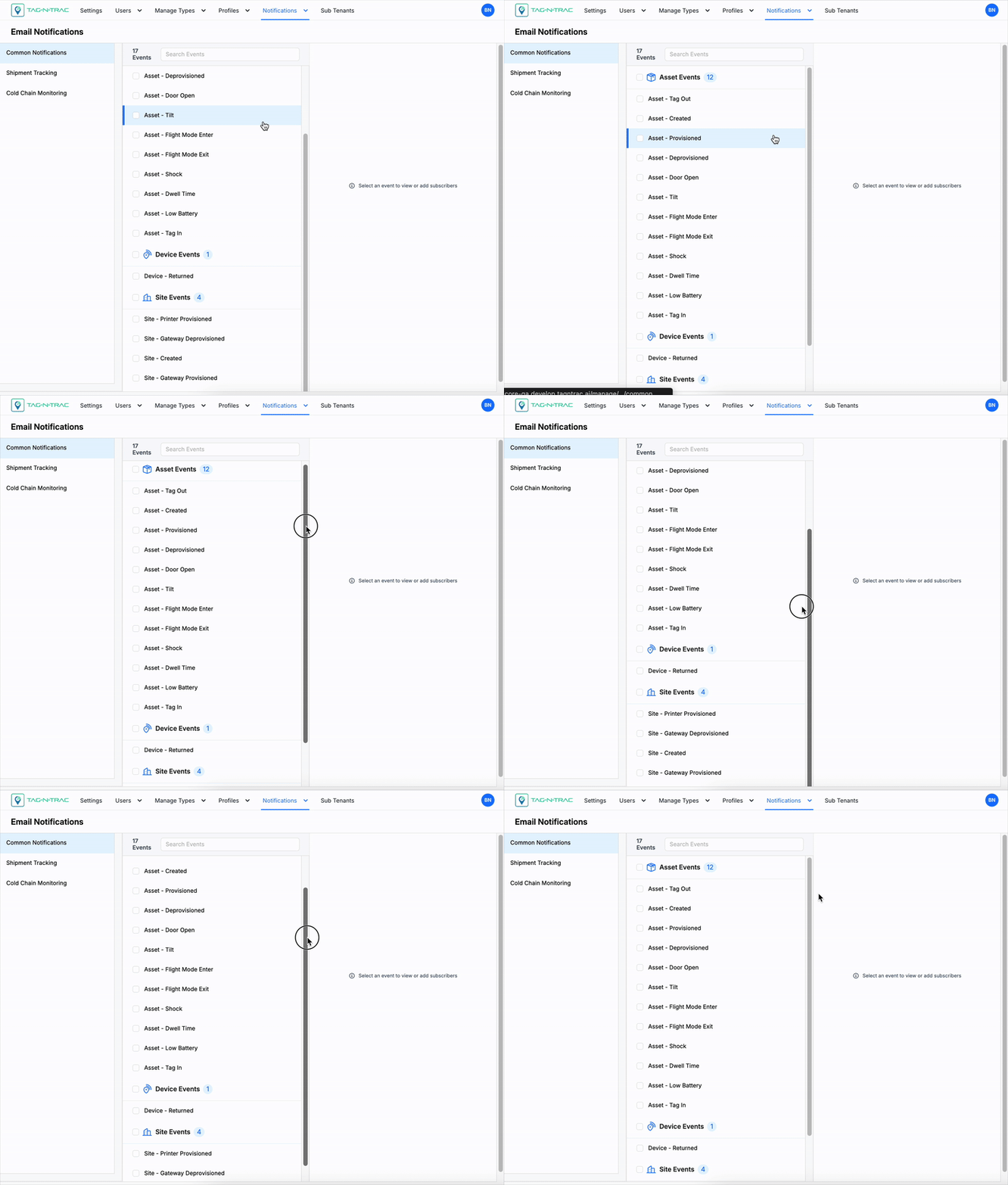
You can subscribe to the following types of notifications under Common Notifications. These event categories cover key activities across assets, devices, and sites.
Common Notification Events
- Asset Events: Triggered when asset-related actions occur, such as creation, provisioning, deprovisioning, dwell time, low battery, shock, tilt, or flight mode transitions.
- Device Events: Triggered by device activities, such as device return, cellular connectivity updates, or Bluetooth Low Energy (BLE) events.
- Site Events: Triggered when site-related actions occur, such as site creation, gateway provisioning, printer provisioning, or deprovisioning.
Following is a breakdown of supported events grouped into three categories:
| Asset Events | Description |
|---|---|
| Asset - Tag Out | Triggered when an asset is tagged out of a location or process. |
| Asset - Created | Triggered when a new asset is created in the platform. |
| Asset - Provisioned | Triggered when an asset is provisioned and ready for use. |
| Asset - Deprovisioned | Triggered when an asset is deprovisioned and no longer active. |
| Asset - Door Open | Triggered when an asset’s door or compartment is opened. |
| Asset - Tilt | Triggered when tilt or orientation of an asset changes beyond thresholds. |
| Asset - Flight Mode Enter | Triggered when an asset enters flight-safe mode. |
| Asset - Flight Mode Exit | Triggered when an asset exits flight-safe mode. |
| Asset - Shock | Triggered when an asset experiences a shock event (impact detected). |
| Asset - Dwell Time | Triggered when an asset remains stationary beyond the configured dwell time. |
| Asset - Low Battery | Triggered when an asset's device reports low battery status. |
| Asset - Tag In | Triggered when an asset is tagged into a location or process. |
| Device Event | Description |
|---|---|
| Device - Returned | Triggered when a device is returned to the system or inventory. |
| Site Event | Description |
|---|---|
| Site - Printer Provisioned | Triggered when a printer at a site is successfully provisioned. |
| Site - Gateway Deprovisioned | Triggered when a gateway at a site is deprovisioned or removed. |
| Site - Created | Triggered when a new site is created in the system. |
| Site - Gateway Provisioned | Triggered when a gateway at a site is successfully provisioned. |
Shipment Tracking Events
If you are using the Shipment Tracking module, you can subscribe to the following types of notifications. These events cover the full lifecycle of shipments, including creation, updates, transit milestones, and exception handling.
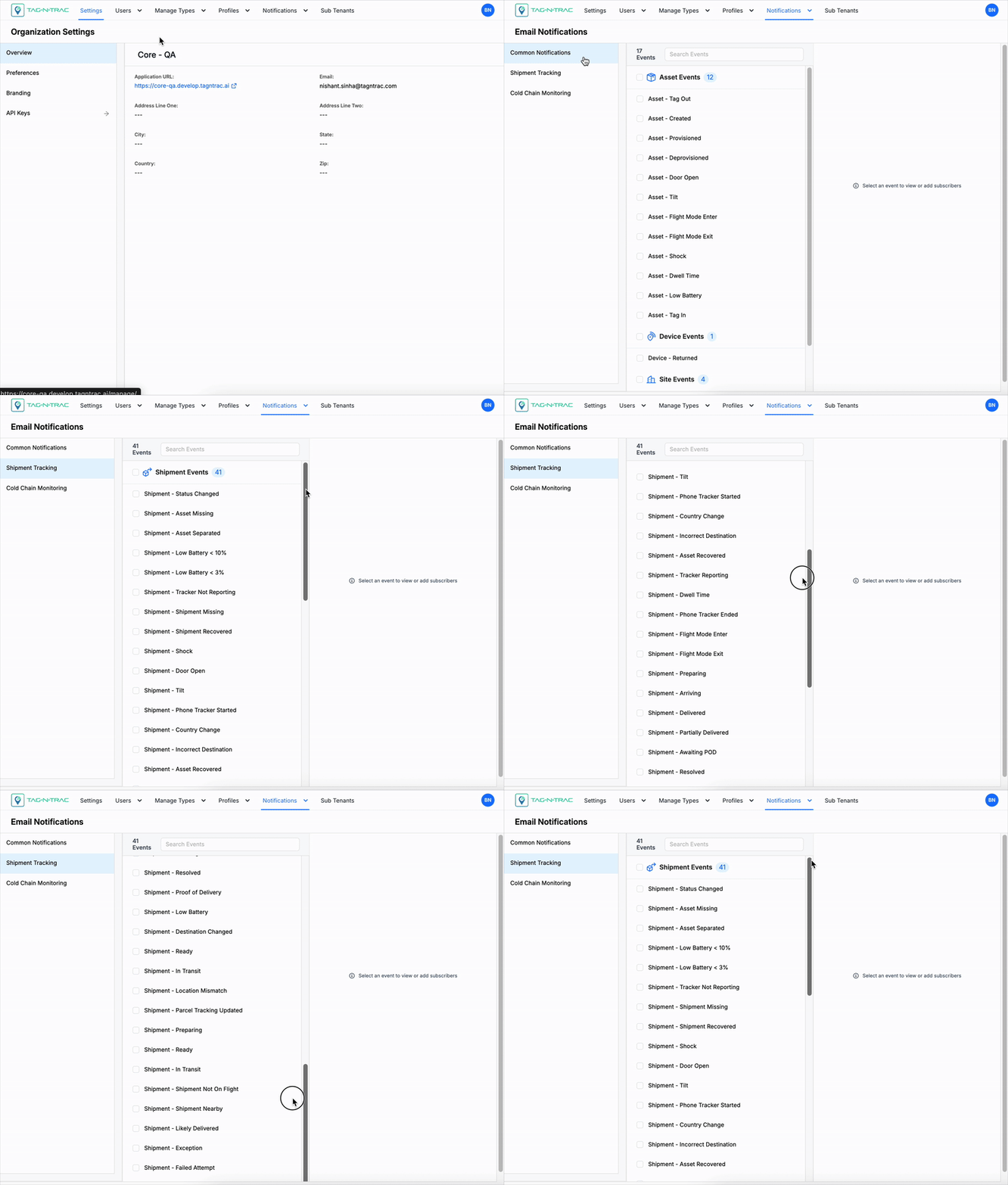
Shipment Tracking Events
| Event Name | Description |
|---|---|
| Shipment - Status Changed | Triggered when the overall status of a shipment changes. |
| Shipment - Asset Missing | Triggered when an asset linked to a shipment is detected as missing. |
| Shipment - Asset Separated | Triggered when an asset becomes separated from its shipment. |
| Shipment - Low Battery < 10% | Triggered when a device in the shipment reports battery below 10%. |
| Shipment - Low Battery < 3% | Triggered when a device in the shipment reports battery below 3%. |
| Shipment - Tracker Not Reporting | Triggered when a tracker stops sending updates for a shipment. |
| Shipment - Shipment Missing | Triggered when the entire shipment is reported missing. |
| Shipment - Shipment Recovered | Triggered when a previously missing shipment is recovered. |
| Shipment - Shock | Triggered when a shipment experiences a shock event (impact detected). |
| Shipment - Door Open | Triggered when the shipment’s container or door is opened. |
| Shipment - Tilt | Triggered when the shipment is tilted beyond configured thresholds. |
| Shipment - Phone Tracker Started | Triggered when phone-based shipment tracking begins. |
| Shipment - Country Change | Triggered when the shipment crosses into a new country. |
| Shipment - Incorrect Destination | Triggered when the shipment is routed to an incorrect destination. |
| Shipment - Asset Recovered | Triggered when an asset previously missing from the shipment is recovered. |
| Shipment - Tracker Reporting | Triggered when a tracker resumes sending updates for a shipment. |
| Shipment - Dwell Time | Triggered when the shipment remains stationary beyond a set time threshold. |
| Shipment - Phone Tracker Ended | Triggered when phone-based shipment tracking ends. |
| Shipment - Flight Mode Enter | Triggered when a device in the shipment enters flight-safe mode. |
| Shipment - Flight Mode Exit | Triggered when a device in the shipment exits flight-safe mode. |
| Shipment - Preparing | Triggered when the shipment is being prepared for dispatch. |
| Shipment - Arriving | Triggered when the shipment is nearing its delivery destination. |
| Shipment - Delivered | Triggered when the shipment has been successfully delivered. |
| Shipment - Partially Delivered | Triggered when only part of a shipment has been delivered. |
| Shipment - Awaiting POD | Triggered when the shipment is awaiting Proof of Delivery confirmation. |
| Shipment - Resolved | Triggered when a shipment-related issue or alert has been resolved. |
| Shipment - Proof of Delivery | Triggered when Proof of Delivery is successfully captured. |
| Shipment - Low Battery | Triggered when a device in the shipment reports low battery. |
| Shipment - Destination Changed | Triggered when the shipment’s destination has been updated. |
| Shipment - Ready | Triggered when the shipment is ready for dispatch or transit. |
| Shipment - In Transit | Triggered when the shipment is on its way to the next or final destination. |
| Shipment - Location Mismatch | Triggered when the shipment’s location does not match expected data. |
| Shipment - Parcel Tracking Updated | Triggered when parcel-level tracking information is updated. |
| Shipment - Shipment Not On Flight | Triggered when a shipment expected to be airborne is not on the flight. |
| Shipment - Shipment Nearby | Triggered when the shipment is close to its expected delivery location. |
| Shipment - Likely Delivered | Triggered when system conditions indicate the shipment is likely delivered. |
| Shipment - Exception | Triggered when a shipment encounters an exception (e.g., lost, damaged). |
| Shipment - Failed Attempt | Triggered when a delivery attempt for the shipment fails. |
Cold Chain Monitoring
If you are using the Cold Chain Monitoring module, you can subscribe to the following types of notifications. These events cover the full lifecycle of shipments, including creation, updates, transit milestones, and exception handling.
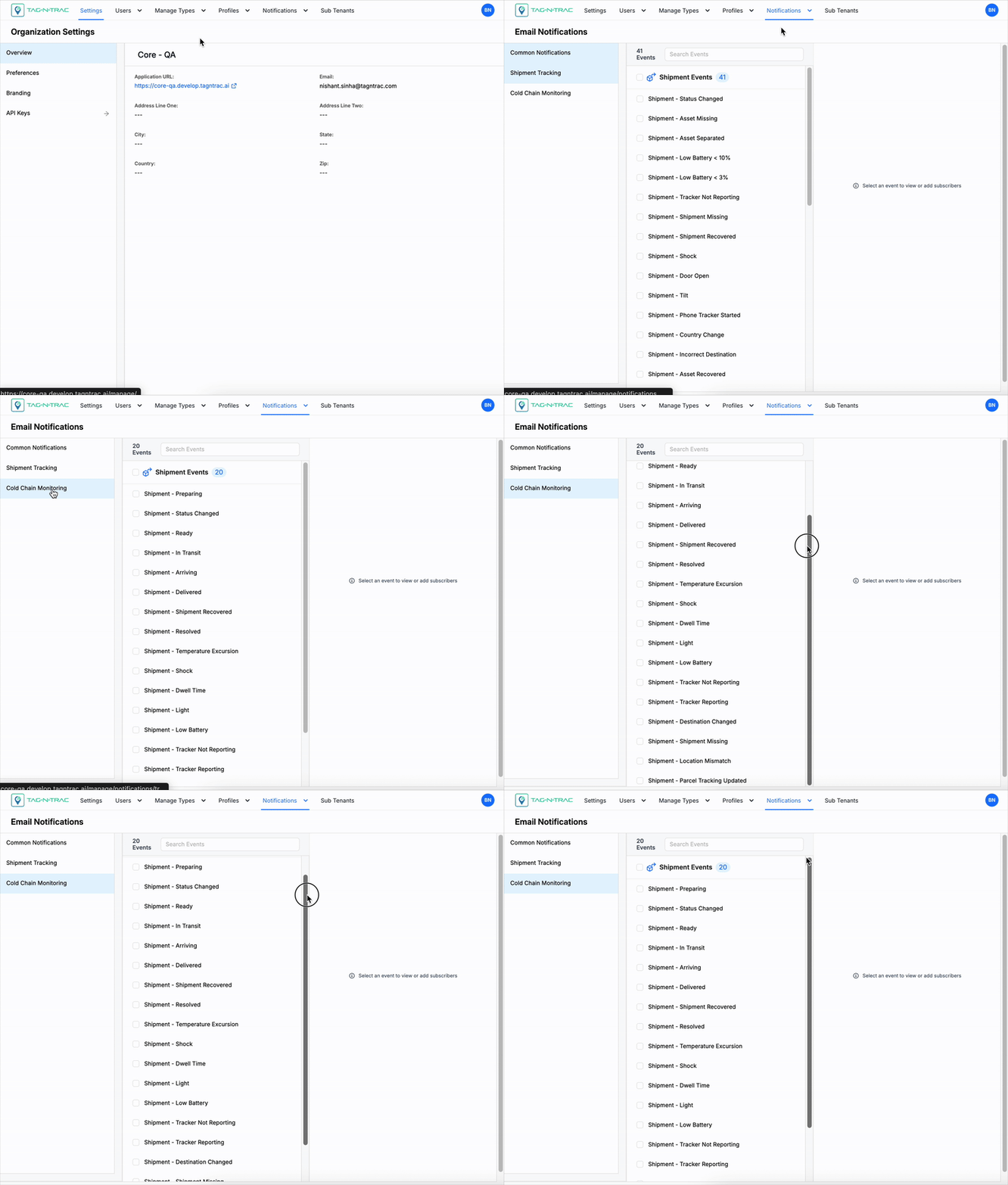
Cold Chain Monitoring
| Event Name | Description |
|---|---|
| Shipment - Preparing | Triggered when the shipment is being prepared for dispatch. |
| Shipment - Status Changed | Triggered when the overall status of a shipment changes. |
| Shipment - Ready | Triggered when a shipment is ready for dispatch or transit. |
| Shipment - In Transit | Triggered when the shipment is on its way to the next or final destination. |
| Shipment - Arriving | Triggered when the shipment is nearing its delivery destination. |
| Shipment - Delivered | Triggered when the shipment has been successfully delivered. |
| Shipment - Shipment Recovered | Triggered when a previously missing shipment is recovered. |
| Shipment - Resolved | Triggered when a shipment-related issue or alert has been resolved. |
| Shipment - Temperature Excursion | Triggered when the shipment experiences a temperature excursion. |
| Shipment - Shock | Triggered when a shipment experiences a shock event (impact detected). |
| Shipment - Dwell Time | Triggered when the shipment remains stationary beyond a set time threshold. |
| Shipment - Light | Triggered when unexpected light exposure is detected (e.g., container opened). |
| Shipment - Low Battery | Triggered when a device in the shipment reports low battery. |
| Shipment - Tracker Not Reporting | Triggered when a tracker stops sending updates for a shipment. |
| Shipment - Tracker Reporting | Triggered when a tracker resumes sending updates for a shipment. |
| Shipment - Destination Changed | Triggered when the shipment’s destination has been updated. |
| Shipment - Shipment Missing | Triggered when the entire shipment is reported missing. |
| Shipment - Location Mismatch | Triggered when the shipment’s location does not match expected data. |
| Shipment - Parcel Tracking Updated | Triggered when parcel-level tracking information is updated. |
| Shipment - Shipment Not On Flight | Triggered when a shipment expected to be airborne is not on the flight. |
Subscribing to an Event
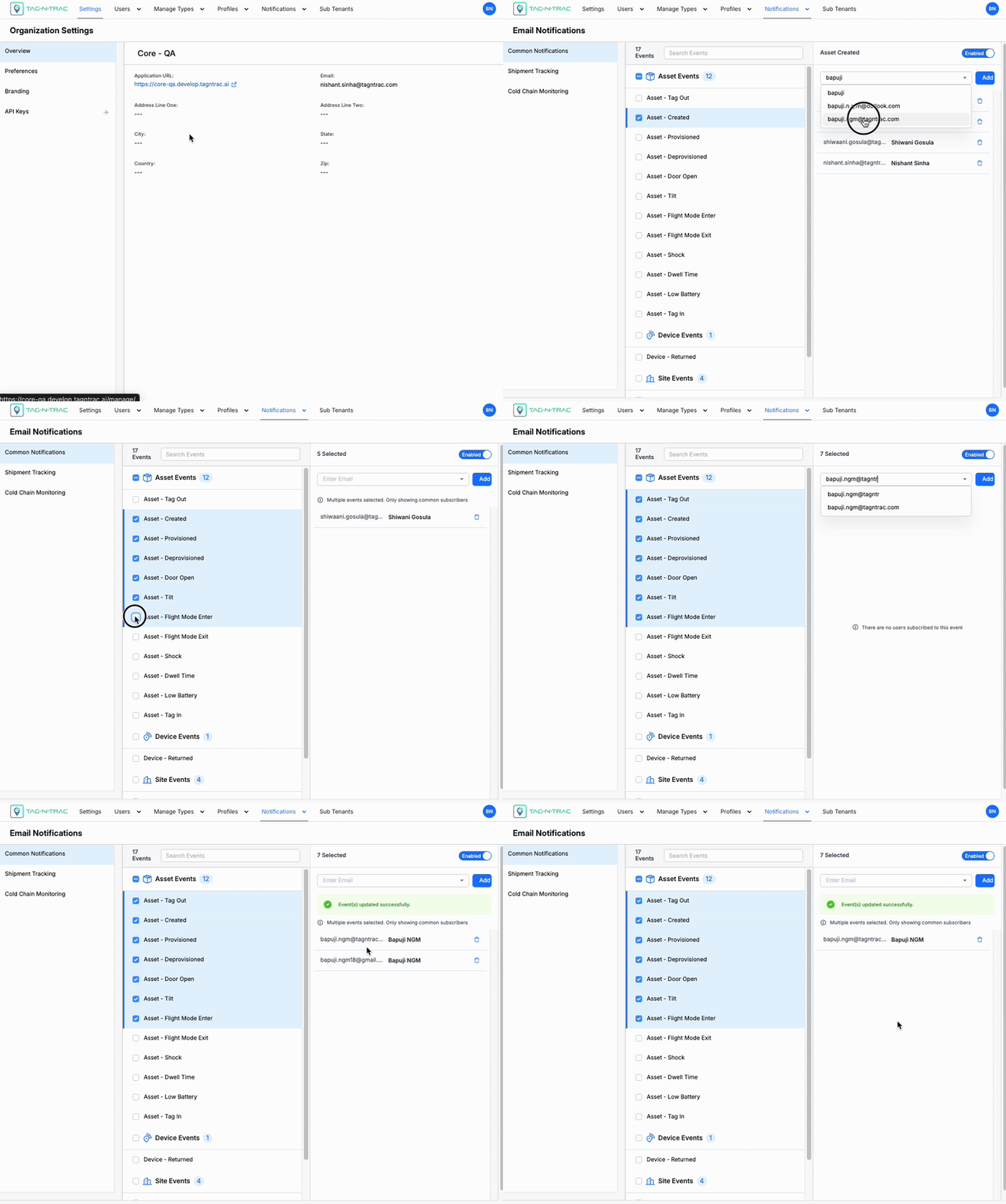
Subscribing to an Event
To receive notifications for a specific event via email:
-
Navigate to:
Notifications > Notification Type > Event Type > Select Event- Notification Type: Choose from Common Notifications, Shipment Tracking, or Cold Chain Monitoring.
- Event Type: Expand the category (Example: Shipment Events) and select the desired event.
-
In the right-hand panel under Emails:
- Enter Email: Enter the email address where notifications should be sent.
- If the user already has access to the platform, their name will appear in the dropdown list. Start typing to quickly search and select them.
- For a new user, enter the full and correct email address manually, then click Add.
- Add: Click Add to subscribe the email to the selected event.
- Enter Email: Enter the email address where notifications should be sent.
-
Subscribed email addresses appear in a list below, with the option to:
- Remove (bin icon): Click the bin icon next to the email address to unsubscribe it at any time.
Enable/Disable Event Type
You can enable or disable an entire event type to control whether notifications are sent.
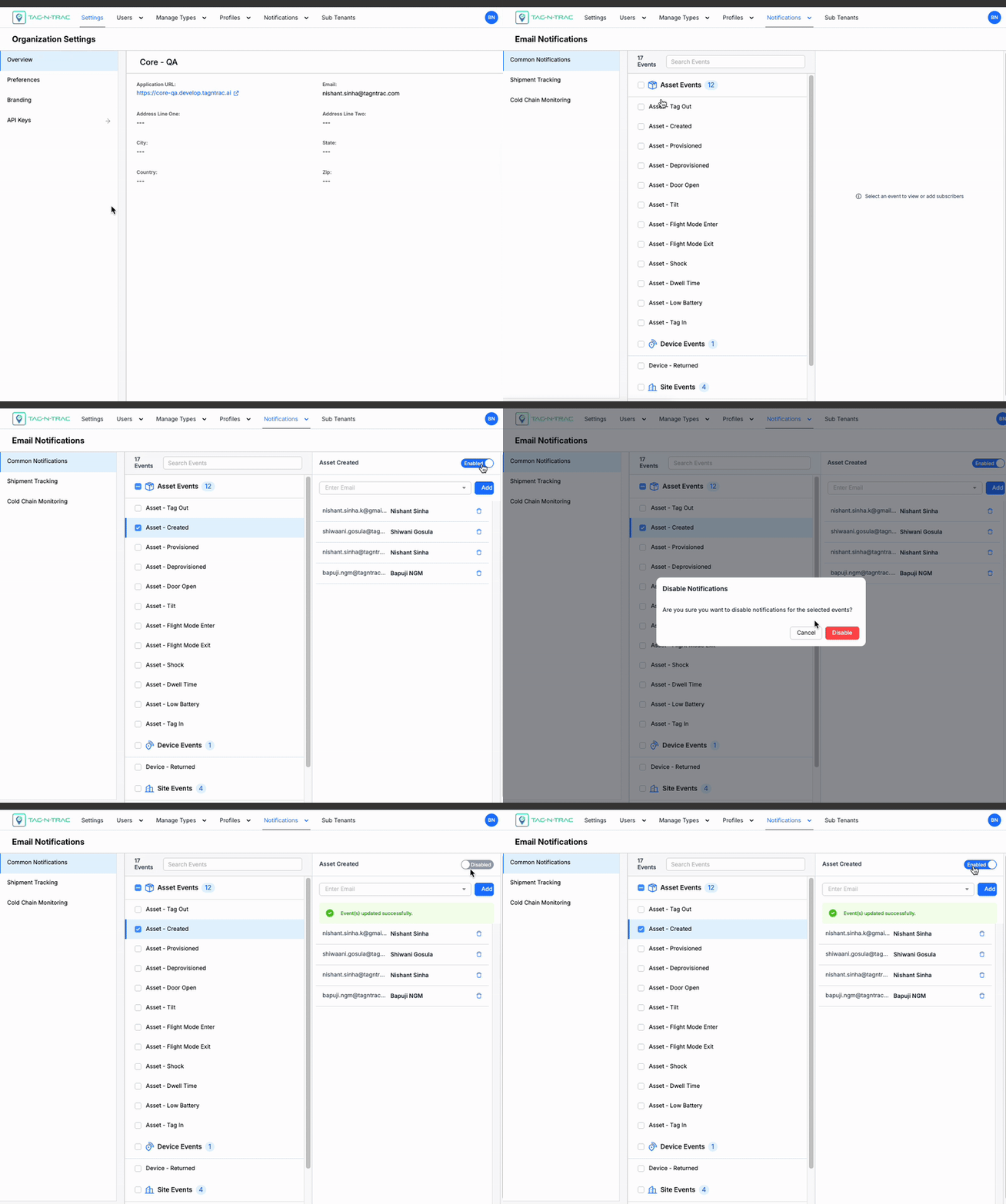
Enable/Disable Event Type
- Toggle the switch in the right panel to activate or deactivate event notifications according to your operational requirements.
Note: Disabling an event type prevents all subscribed users from receiving notifications for that event until re-enabled.
Best Practices
- Use distribution lists: Instead of adding multiple individual email addresses, use a group or distribution list to simplify management.
- Keep contacts updated: Regularly review and update subscribed email addresses to ensure alerts reach the correct recipients.
- Avoid personal accounts: Use official work email addresses to maintain security and ensure accountability.
- Enable only necessary events: Subscribe only to the events relevant to your operations to avoid notification fatigue.
- Test before deployment: Send test notifications to verify that emails are delivered correctly and not filtered into spam.
- Monitor critical alerts: Assign responsibility to specific team members to monitor and act on critical event notifications promptly.
Webhooks
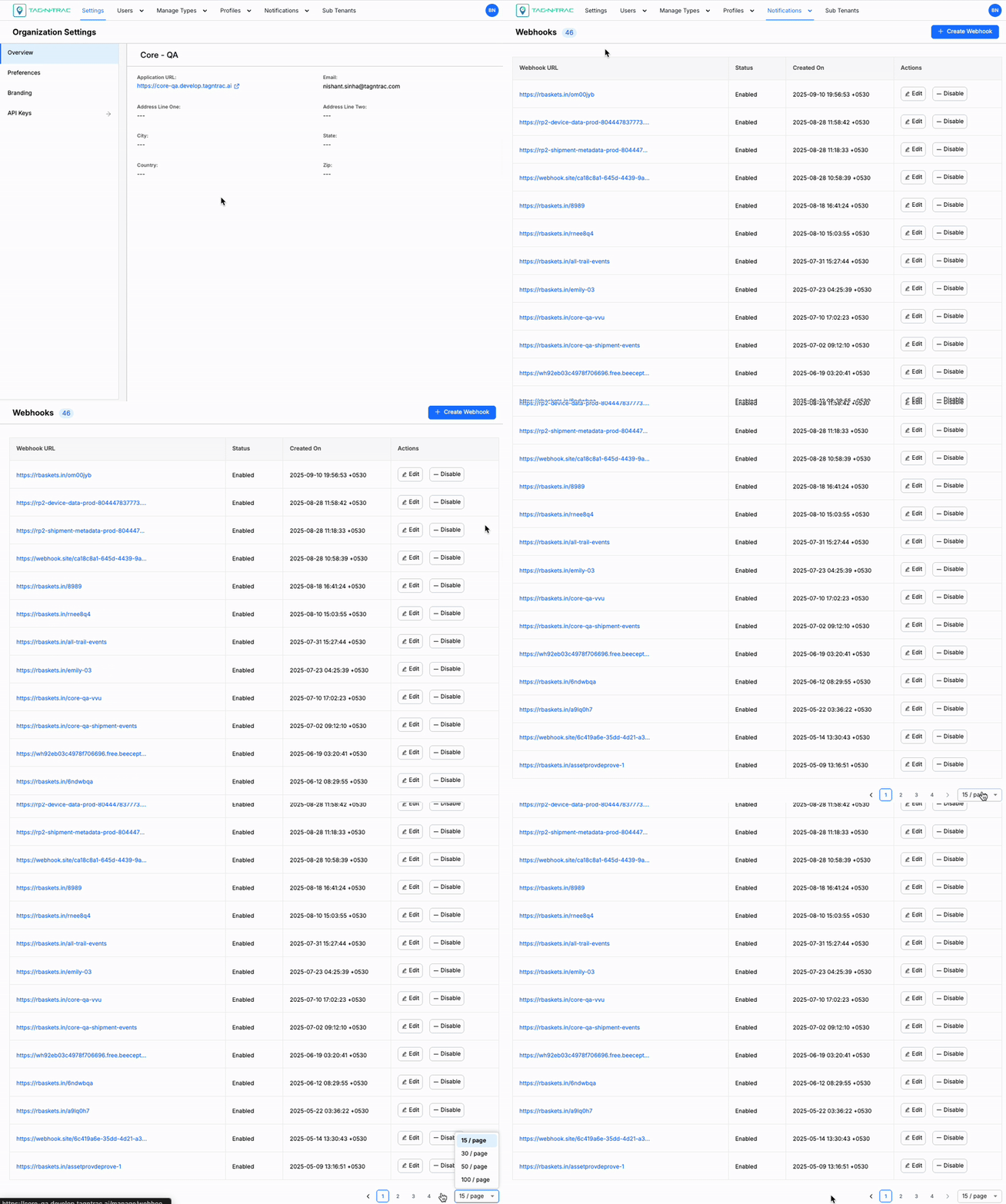
Webhooks provide event-based (push) triggers for receiving alerts, devices, shipments, or assets data. These webhooks ensure you receive information as soon as it is processed by Tag-N-Trac, eliminating the need to repeatedly poll an API endpoint for changes.
Webhooks
In the Tag-N-Trac ecosystem, webhooks are associated at the account level and can be triggered by one or more system events from the data stream. This makes them ideal for integrating with external systems, automating workflows, and keeping your applications up-to-date in real time.
Webhook Configuration
When creating a webhook, you must configure the following parameters:
- URL: The endpoint where notifications will be sent. This must be a valid, accessible URL capable of handling incoming POST requests.
- Headers: (Optional) Add custom headers as key–value pairs to provide additional information or security.
- Example:
Authorization: Bearer <token>(authentication)Content-Type: application/json(defines payload format)
- Example:
How It Works
The Webhooks feature allows you to receive real-time notifications whenever specific events occur in the platform.
- Instead of pulling updates from an API, webhooks push data directly to your configured server.
- Each webhook event delivers a JSON payload with details about what happened.
- You can subscribe to multiple events, such as asset changes, site events, or device activities.
Benefits
- Automation: Trigger downstream processes instantly when an event occurs.
- Integration: Seamlessly connect Tag-N-Trac with third-party systems.
- Efficiency: Reduce network traffic and resource usage compared to polling APIs.
Webhooks Flow Diagram
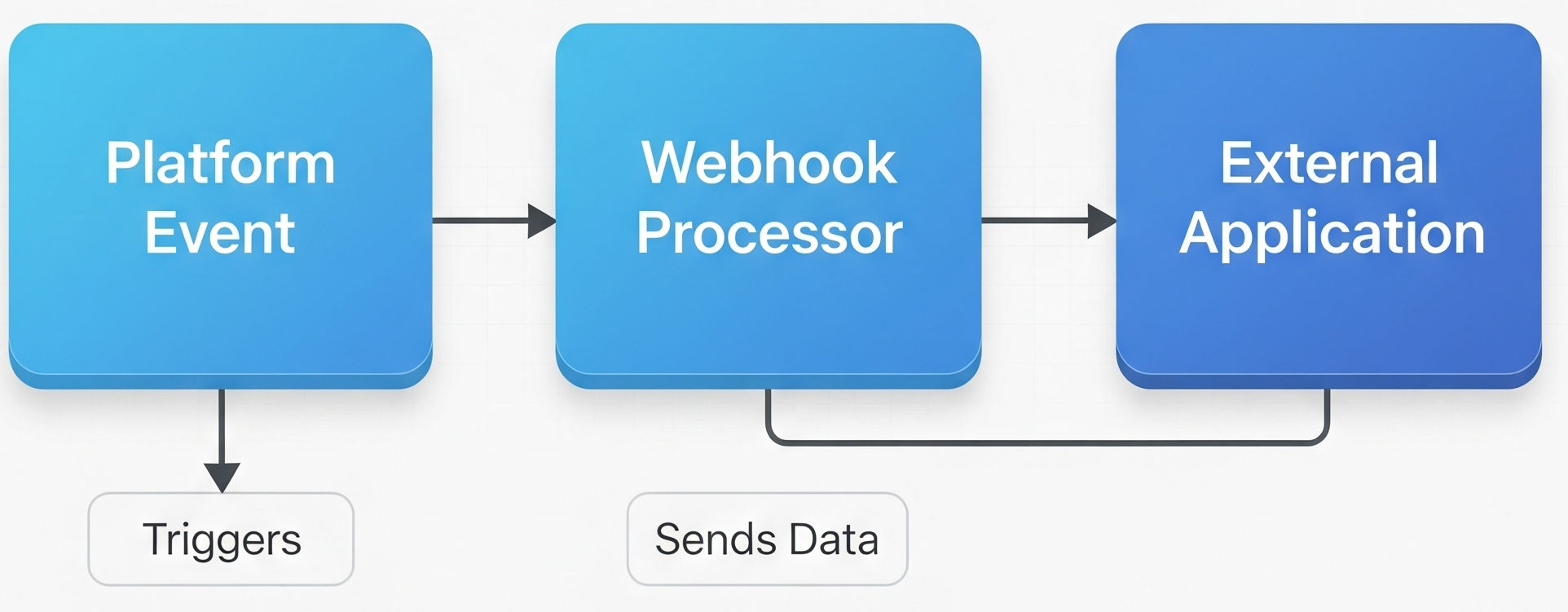
The following diagram illustrates the webhook process:
Webhooks Workflow Diagram
- Platform Event: An event occurs in the platform (Example: an asset is created).
- Webhook Service: The webhook service sends a POST request with a JSON payload to the configured Base URL.
- External Application: The external application receives the payload and processes it (Example: updates a database, triggers an alert, or starts a workflow).
Creating a Webhook
By creating a webhook, you can configure an endpoint to automatically receive event data without needing to constantly poll the system.
Creating Webhooks
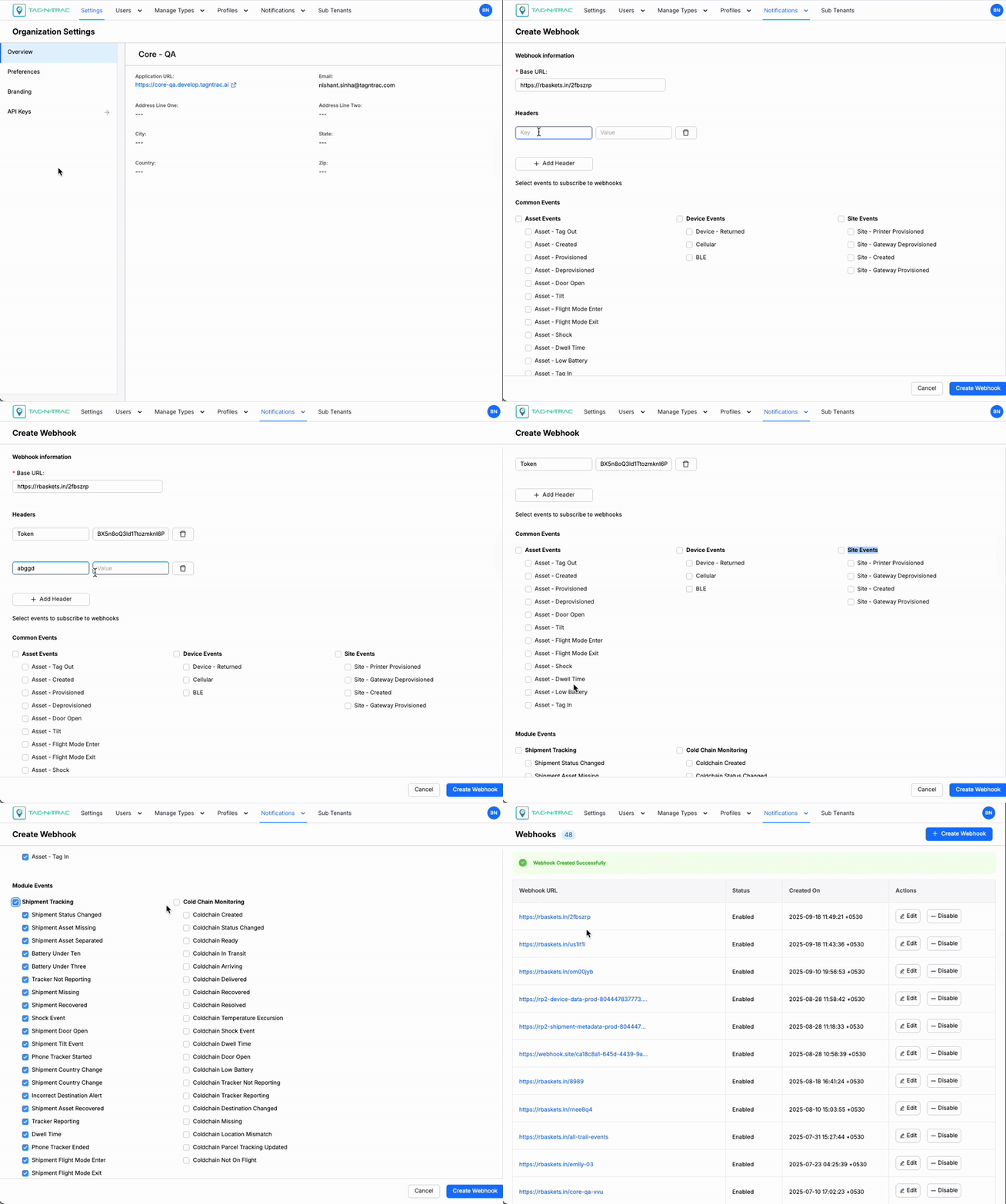
To create a webhook:
- Navigate to Notifications
>Webhooks. - Click + Create Webhook.
- In the Create Webhook window, provide the following information:
Webhook Information
- Base URL: Enter the URL of the server or endpoint where you want to receive webhook notifications. This must be a valid, and an accessible URL that your system can handle.
Headers
- Optionally, add Headers as key–value pairs. Headers supply metadata with each request and can be used for security, formatting, or custom data.
- Examples:
Content-Type: application/json→ Defines the data format of the payload.Authorization: Bearer <token>→ Provides authentication to validate requests.X-Event: payment_succeeded→ Supplies a custom header with event details.
Note: The Webhook Body contains the actual event data, usually in JSON format. Headers provide additional context about the request.
Events Subscription
- Under Select events to subscribe to webhooks, choose the events you want to receive.
- You can select multiple events simultaneously.
Events are categorized as follows:
Common Events
Webhooks can be configured to notify your system about specific events that occur across assets, sites, and devices.
Each event type provides useful context for monitoring, automation, or integration with external systems.
Following is a breakdown of supported events grouped into three categories:
| Asset Event | Description |
|---|---|
| Asset - Dwell Time | Triggered when an asset stays in a location for longer than a set threshold. |
| Asset - Low Battery | Indicates that an asset’s device battery level has dropped below a certain level. |
| Asset - Created | Triggered when a new asset is created in the platform. |
| Asset - Provisioned | Indicates an asset has been successfully set up and activated. |
| Asset - Deprovisioned | Indicates an asset has been deactivated or removed from service. |
| Asset - Door Open | Triggered when an asset’s door or enclosure is opened. |
| Asset - Flight Mode Enter | Event when the asset enters flight mode (usually disabling communication). |
| Asset - Flight Mode Exit | Event when the asset exits flight mode and resumes communication. |
| Asset - Tag In | Triggered when an asset enters the storage area and the gateways capture the data. |
| Asset - Tag Out | Triggered when an asset exists the storage area and the gateways capture the data. |
| Asset - Shock | Indicates the asset has experienced a sudden impact or shock. |
| Asset - Tilt | Triggered when the asset is tilted beyond a defined angle threshold. |
| Site Event | Description |
|---|---|
| Site - Gateway Provisioned | A gateway device has been successfully registered and activated at a site. |
| Site - Printer Provisioned | A printer has been successfully set up and activated at a site. |
| Site - Gateway Deprovisioned | A gateway device has been removed or deactivated from a site. |
| Site - Created | Triggered when a new site is created in the platform. |
| Device Event | Description |
|---|---|
| Device - Returned | Indicates a device has been returned after use. |
| Device - Cellular | Event related to device cellular connectivity changes or updates. |
| Device - BLE | Event related to Bluetooth Low Energy (BLE) connectivity or updates. |
Module Events
Module events are triggered when specific shipment-related activities occur.
They help monitor the lifecycle of a shipment, detect exceptions, and track asset or device behavior in real-time.
Following is a breakdown of supported module events with short descriptions:
| Track Event | Description |
|---|---|
| Shipment Arriving | Triggered when a shipment is nearing its destination. |
| Shipment Delivered | Indicates that the shipment has been successfully delivered. |
| Shipment Partially Delivered | Triggered when only part of a shipment is delivered. |
| Shipment Awaiting Pod | Shipment delivery pending proof of delivery (POD). |
| Shipment Resolved | Marks a shipment case or exception as resolved. |
| Shipment POD | Proof of delivery has been captured for the shipment. |
| Shipment Low Battery | Device tracking the shipment has a low battery. |
| Shipment Destination Changed | The destination address of the shipment was updated. |
| Shipment Nearby | Triggered when a shipment is detected near its destination. |
| Shipment Likely Delivered | Indicates the system predicts the shipment has been delivered. |
| Shipment Parcel Exception | Raised when an issue occurs with the parcel (e.g., damaged, delayed). |
| Shipment Parcel Undelivered | Indicates that a parcel within the shipment could not be delivered. |
| Shipment Not On Flight | Expected flight was missed or shipment is not onboard. |
| Shipment Device Config Initiated | Device configuration for the shipment has started. |
| Shipment Device Config Success | Device configuration for the shipment completed successfully. |
| Shipment Door Open | Triggered when the shipment container or parcel is opened. |
| Incorrect Destination Alert | Raised when shipment is headed to the wrong location. |
| Shipment Status Changed | Status of the shipment has been updated. |
| Battery Under Ten | Device battery level dropped below 10%. |
| Battery Under Three | Device battery level dropped below 3%. |
| Tracker Not Reporting | Shipment tracker has stopped sending updates. |
| Tracker Reporting | Shipment tracker is actively sending updates. |
| Shock Event | The shipment experienced sudden impact or shock. |
| Dwell Time | Shipment stayed in a location longer than a set threshold. |
| Shipment Tilt Event | Shipment tilted beyond a defined angle. |
| Phone Tracker Started | Phone-based tracking session has begun. |
| Phone Tracker Ended | Phone-based tracking session has ended. |
| Shipment Country Change | Shipment crossed into a different country. |
| Shipment Flight Mode Enter | Shipment tracker entered flight mode. |
| Shipment Flight Mode Exit | Shipment tracker exited flight mode. |
| Shipment Location Mismatch | Shipment detected at an unexpected or incorrect location. |
| Shipment Missing | Shipment could not be located as expected. |
| Shipment Recovered | A missing shipment was successfully found again. |
| Shipment Asset Missing | Asset linked to a shipment is missing. |
| Shipment Asset Recovered | Missing shipment asset has been recovered. |
| Shipment Asset Separated | Shipment asset became separated from its assigned shipment. |
| Shipment Parcel Tracking Updated | Parcel tracking information was updated. |
| Shipment Ready | Shipment is prepared and ready to be dispatched. |
| Shipment Created | Triggered when a new shipment record is created. |
| Shipment In Transit | Indicates that the shipment is on its way to the destination. |
Finalizing
- After configuring all the settings, click Create Webhook to save it.
- To cancel, click Cancel.
Note: Any information entered will be lost if you cancel.
Example Payload
When an event is triggered, the platform sends a JSON payload to the webhook URL.
Example Payload:
{
  "meta": {
    "solution": "track",
    "event_type": "shipment_created",
    "version": "1.0",
    "timestamp": "2025-05-23T08:33:10Z",
    "extensible_fields": []
  },
  "payload": {
    "shipment": {
      "id": "9e784932-e7ac-4845-87a8-5a74c18b0721",
      "shipment_identifier": "SHIP-TEST-001",
      "status": "ready",
      "template": {
        "id": "b31a5008-f834-48f4-98e5-54cccb7a3b6d",
        "name": "1_LEVEL_with_no_option"
      },
      "transit_start_time": "",
      "transit_end_time": "",
      "trackers": [
        {
          "device_identifier": "SSR-ST300-182",
          "primary": true
        }
      ],
      "created_at": "2025-05-23T08:32:36Z",
      "updated_at": "2025-05-23T08:33:05Z",
      "links": [],
      "extensible_fields": []
    },
    "event": {
      "id": "87d86d26-04ce-4c21-9c18-9a44cb722eed",
      "title": "Preparing",
      "message": "Shipment is getting prepared",
      "timestamp": "1747989156000",
      "unique_reading_id": "",
      "note": {},
      "extensible_fields": []
    },
    "sensor_info": {}
  }
}
Managing Webhooks
After creation, webhooks appear in the list where they can be managed.
Webhooks List
When you navigate to Notifications > Webhooks, the system displays a list of all existing webhooks.
If no webhooks exist, the system displays a message prompting you to create one.
Each entry in the list shows:
| Field | Description |
|---|---|
| Webhook URL | The destination endpoint where the event notifications are delivered. |
| Status | Indicates whether the webhook is Enabled (active and delivering events) or Disabled (inactive). |
| Created On | The date and time when the webhook was created. |
| Actions | Options to manage the webhook:
|
Webhook Details Page
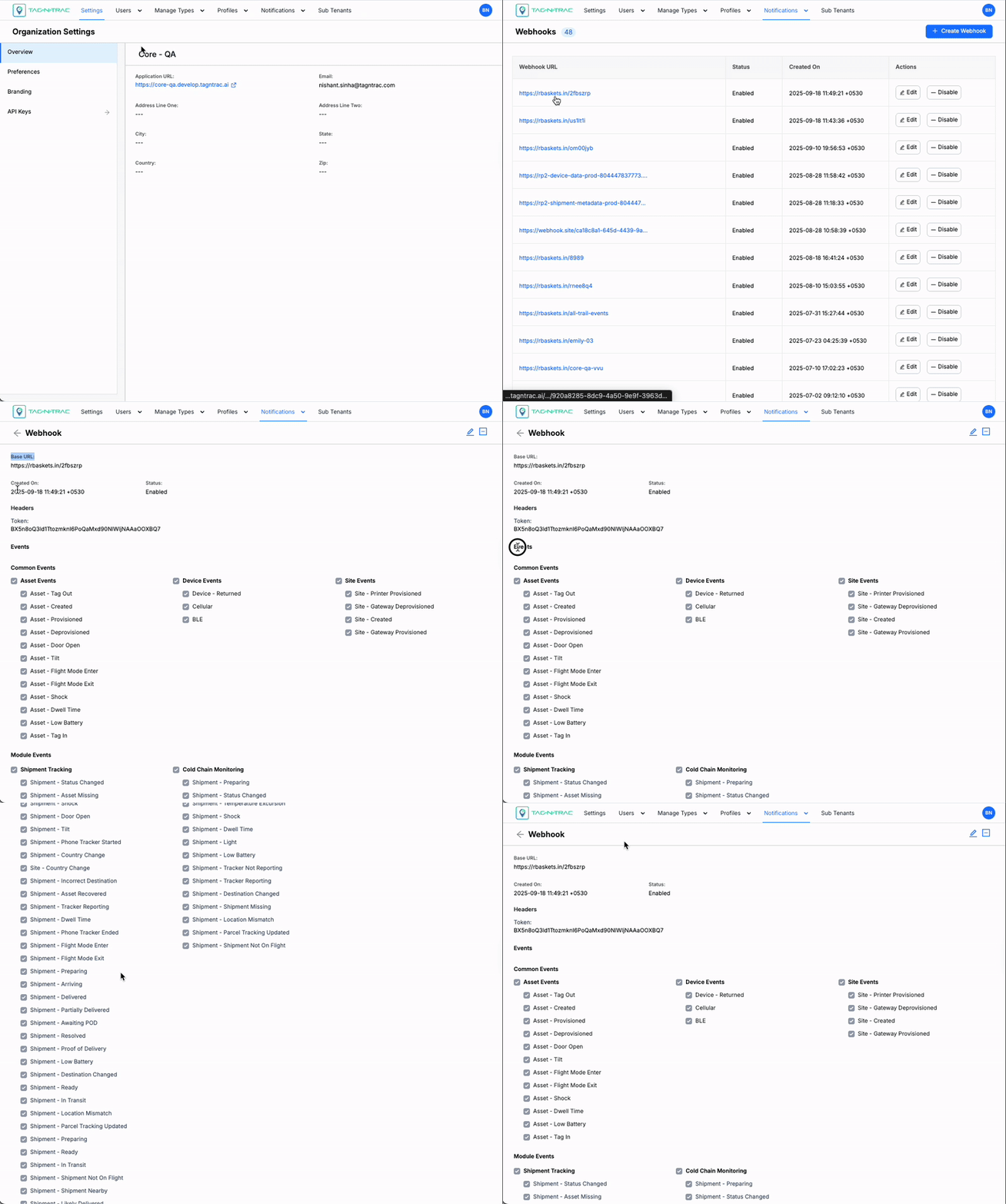
To view the webhook details page, click on a required webhook URL from the Webhook list.
You can preview the webhook properties such as Base URL, Headers, and Event details.
Webhook Details Page
Editing a Webhook
The platform provides two ways to edit a webhook: from the Webhooks List or from the Webhook Details page.
You can modify all configuration details that were provided during webhook creation, including the Base URL, Headers, and Subscribed Events.
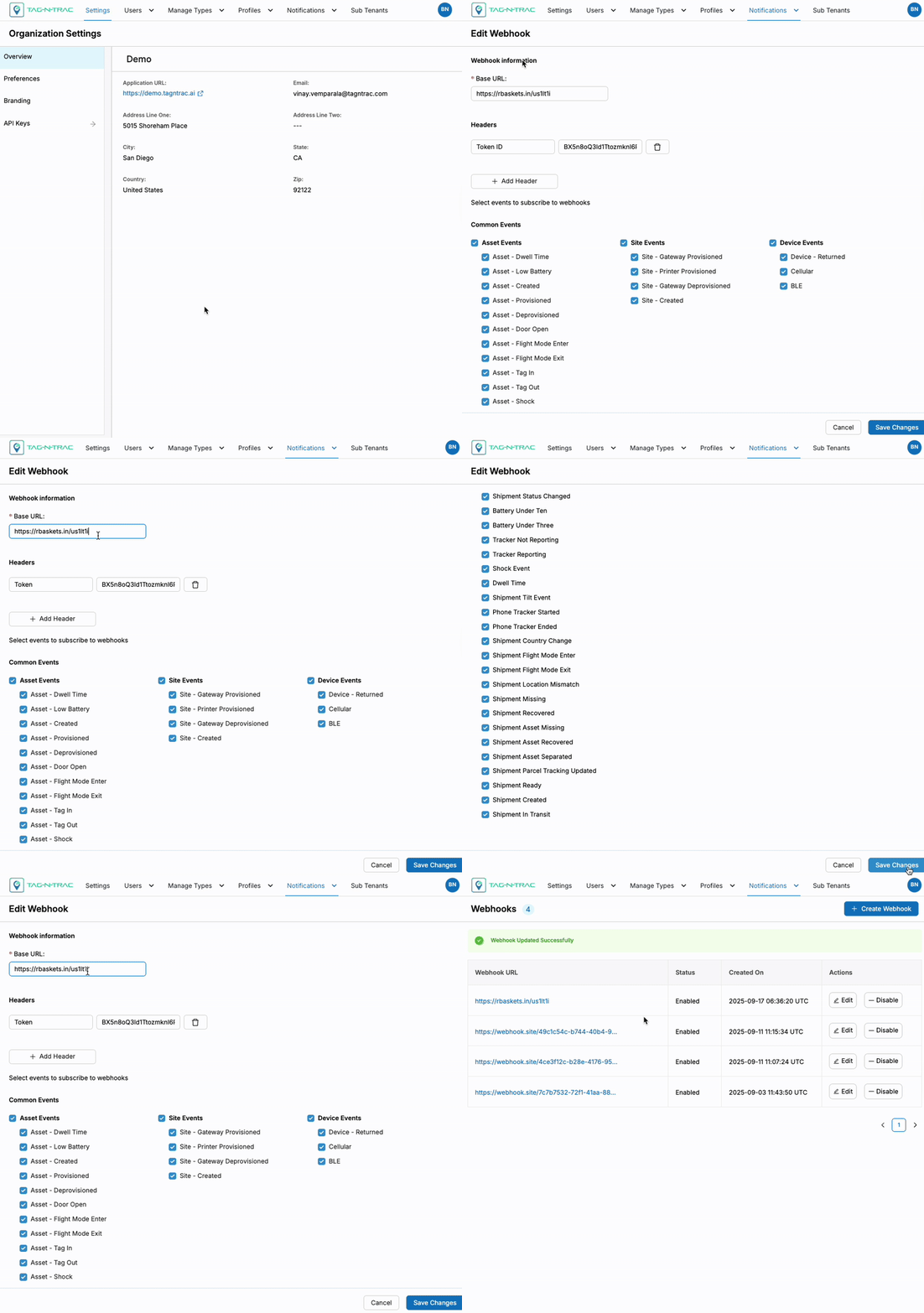
Editing a Webhook
Steps to Edit a Webhook
-
From the Webhooks List:
- Navigate to Notifications > Webhooks.
- Locate the required webhook.
- Click the Edit button (pencil icon) in the Actions column.
-
From the Webhook Details Page:
- Open the Webhook Details page by clicking the webhook name from the list.
- Click the Edit button (pencil icon) located at the top-right corner of the platform.
-
After making the necessary changes, click Save Changes to update the webhook.
-
Click Cancel to exit the process without applying any of the changes made.
Enabling/Disabling a Webhook
The platform provides two ways to enable or disable a webhook: from the Webhooks List or from the Webhook Details page. This allows administrators to control webhook activity based on operational needs.
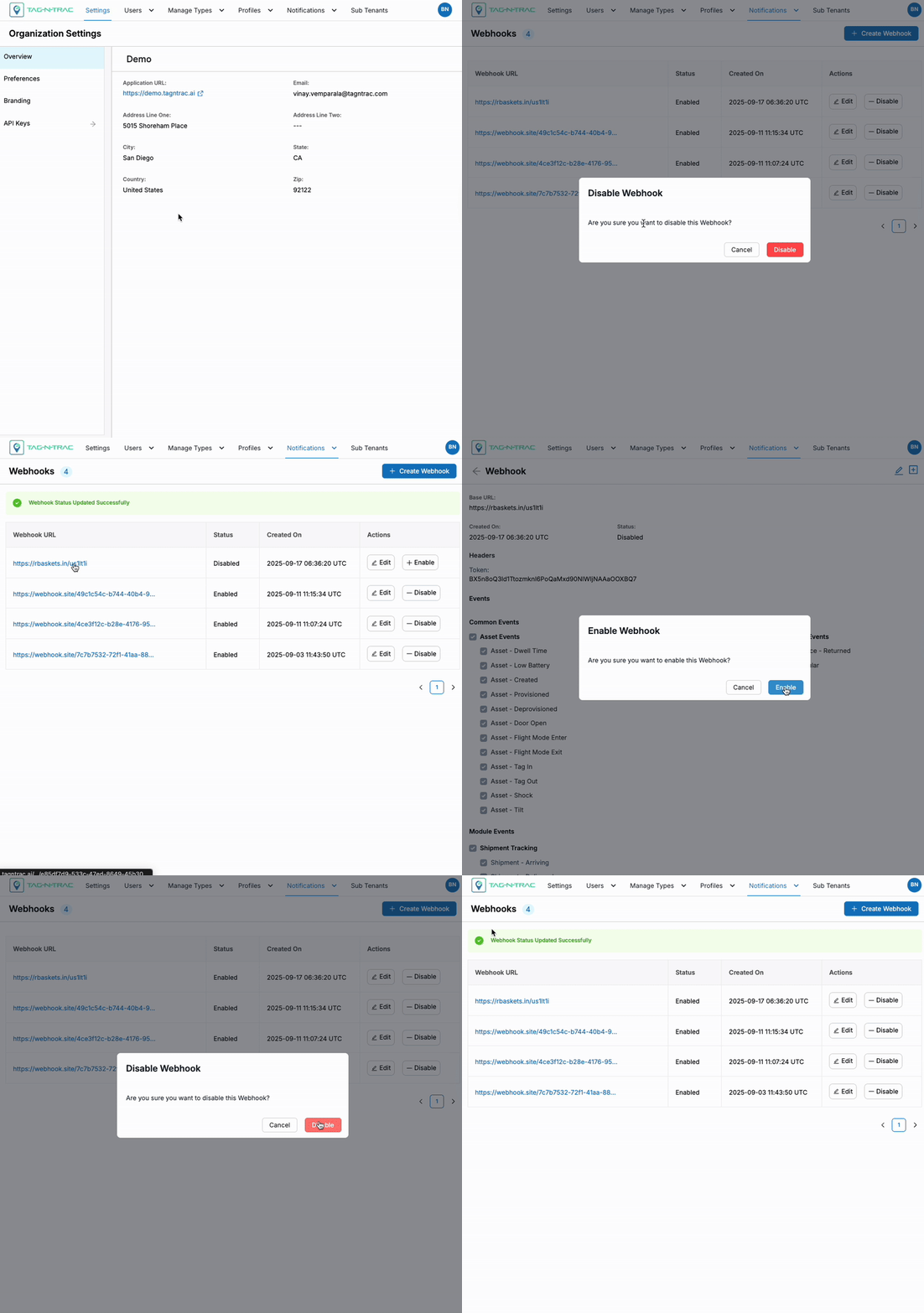
Enabling/Disabling a Webhook
Steps to Disable a Webhook
-
From the Webhooks List:
- Navigate to Notifications > Webhooks.
- Locate the required webhook.
- Click the — Disable button in the Actions column.
-
From the Webhook Details Page:
- Open the Webhook Details page by clicking the webhook name in the list.
- Click the Disable (— icon) button located at the top-right corner of the page.
- In the confirmation dialog:
- Click Disable to deactivate the webhook and stop it from sending notifications.
- Click Cancel to exit without making changes.
Steps to Enable a Webhook
-
From the Webhooks List:
- Navigate to Notifications > Webhooks.
- Locate the disabled webhook.
- Click the Enable button in the Actions column.
-
From the Webhook Details Page:
- Open the Webhook Details page by clicking the webhook name in the list.
- Click the Enable (toggle or equivalent) button at the top-right corner of the page.
Note: Once enabled, the webhook resumes sending notifications for the subscribed events.
Best Practices
- Use secure URLs: Ensure your webhook endpoint uses HTTPS to protect data in transit.
- Authenticate requests: Always use authorization headers or tokens to verify requests are from trusted sources.
- Filter events: Subscribe only to the events you need to avoid unnecessary processing.
- Monitor delivery: Ensure your endpoint responds quickly and reliably; failures may cause retries or missed events.
- Log activity: Maintain logs of incoming webhook events for troubleshooting and auditing.
Common Issues
- Using HTTP instead of HTTPS: This exposes sensitive data to potential interception.
- Not validating authenticity: Accepting requests without verifying signatures or tokens can lead to spoofed events.
- Subscribing to all events: Leads to unnecessary traffic, processing overhead, and storage issues.
- Slow or unreliable endpoints: Causes retries, delays, or even missed events if the service gives up.
- No logging or monitoring: Makes debugging difficult and reduces visibility into system behavior.
Updated about 1 year ago